
Before you start
You need access to Data > Tasks and permission to enter results. Confirm the site, sample point, parameter and measurement context.
Find the scheduled task
- Select the site in the top bar and open Data > Tasks.
- Use Add filter to choose fields such as Date, Task type, Parameter or Sample point. Set the required values.
- Click Search and check the intended task, parameter and sample point.
- Double-click the result task, or open its row menu and choose Edit.
Enter and save the result
- Check the parameter, sample point and organisation in Details.
- Check the Date and use the actual result time.
- Select the qualifier and enter the Value. For a lookup parameter, choose the appropriate option.
- Where shown, check UOM and Instrument. Complete required custom attributes.
- Add a Comment and any relevant photos in Attachments.
- Click Save. Resolve validation messages and review any limit-breach confirmation.
- Refresh the task search and confirm the saved state and value.
For an ad hoc result
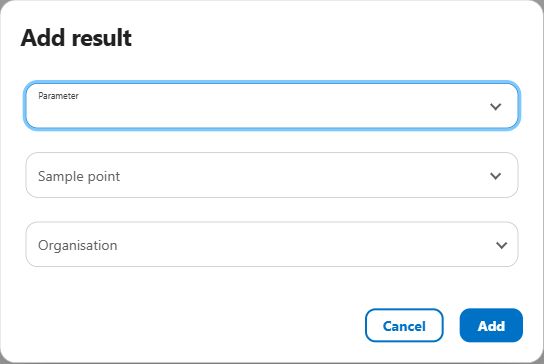
On Data > Tasks, click Add new. Select Parameter, Sample point and Organisation, then click Add. Complete the result editor and Save as above.
Common problems
- Validation prevents saving.
- Check the measurement, qualifier, unit, required attributes and comment. Check required sampling and the permitted task period; do not change dates just to bypass validation.
- I need to correct a recorded result.
- Open the result through your authorised edit workflow, make the correction and enter the required comment explaining the change, then Save.
- The expected task is missing.
- Check the selected site and active filters, then search again. Ask your administrator about scheduling or access if needed.
Need help with your setup?
Your configuration and permissions affect the fields and actions available. Contact your administrator or info@aquantify.com for assistance.
Updated 9 October 2026 · Screens show the Aquantify web and mobile interfaces.