
How to enter results
For offline field work, see Mobile app for downloading tasks, staging samples and results, and uploading with Sync.
Desktop web app
Use Data > Tasks to record samples, enter scheduled results and add ad hoc results. Editing and submission actions depend on your permissions.
Find a scheduled task
- Select the site you are working with in the top bar.
- Open Data > Tasks.
- Use Add filter to select fields such as Date, Task type, Parameter or Sample point, and set the required values.
- Click Search. Check the task, parameter and sample point before opening a row.
Record a sample
- Find a Take sample task and double-click its row. Alternatively, open its row menu and choose Edit.
- Check Sample date/time and choose Sampled or Not sampled in Status.
- Enter a Comment if needed. A comment may be required when recording a sample as not sampled.
- Click Save. Where available, Next saves the sample and opens the next task.
Enter a scheduled result
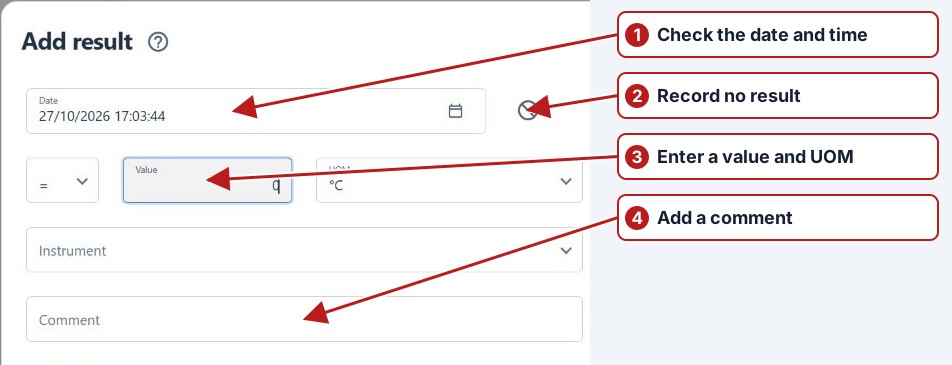
- Double-click the result task, or open its row menu and choose Edit.
- Check the parameter, sample point and organisation in Details.
- Check the Date and update it if needed. Whether future dates are allowed depends on your system settings.
- Select the qualifier and enter the Value. For a lookup parameter, select a value from the list.
- If shown, check UOM and Instrument and select the appropriate values.
- Enter a Comment if needed and complete any required custom attributes.
- To attach photos, click Add in Attachments and select JPG, JPEG or PNG files.
- Click Save. Resolve any validation messages and review any limit-breach confirmation before continuing.
Record no result
- Open the result task.
- Click No result. The value-entry fields are hidden.
- Enter a Comment explaining why there is no result, then click Save.
For multiple tasks, first select the required rows using their checkboxes. Open Bulk operation and choose Bulk "No result", then follow the prompts. Check your selection before submitting a bulk operation.
Update or delete a result
Open the recorded result, make the required changes and click Save. A comment is required when the result is changed. If deletion is available to you, use Delete in the result dialog and confirm when prompted.
Add an ad hoc result
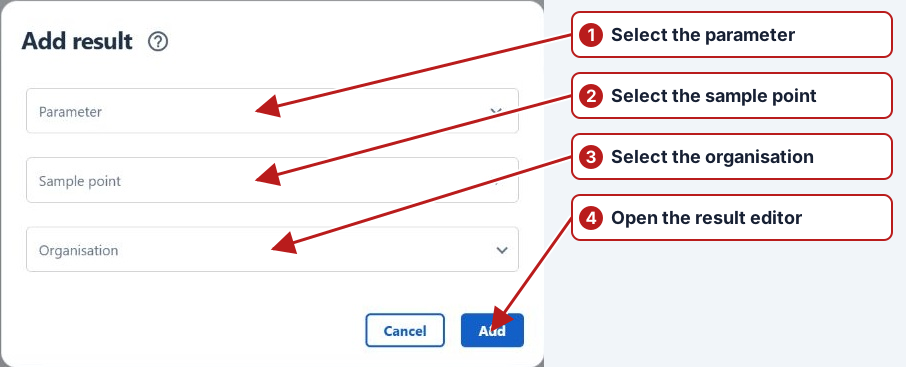
- On Data > Tasks, click Add new.
- Select the Parameter, Sample point and Organisation, then click Add.
- Enter the result in the result dialog, following the steps above, and click Save.
Sampling and result dates
Record the actual collection and result time in the relevant editor fields. A task’s scheduled From/To period is not necessarily its submission time. Timing tolerance and Enforce sampling settings can restrict result submission; check a validation message rather than moving the date merely to bypass it.
Instrument, unit and calculated results
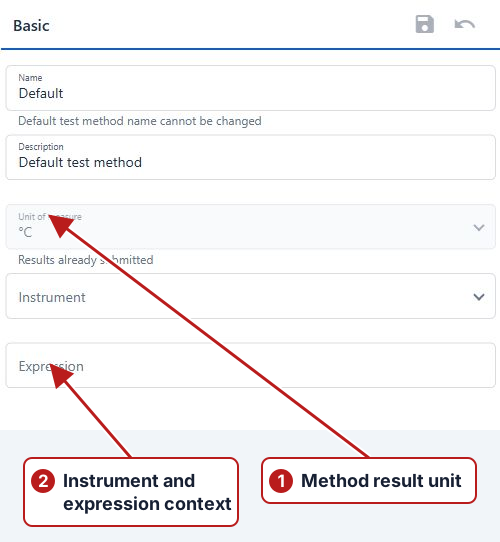
Confirm the applicable method, instrument and unit before saving a measurement. A replacement meter needs its own instrument identity. For a calculated parameter, inspect Calculation details and source measurements; correct an incorrect source through its authorised result-edit workflow.
Review the saved outcome
Refresh the task search and confirm the intended state and value. Review a linked issue after an alert breach. Attachments and comments should explain the observation or correction, while No result needs a reason rather than a numeric zero.
Bulk updates
Select only the intended rows before opening Bulk operation. Review the available operation and any required reason. Bulk completion is an operational change to every selected task, so use a narrow search and inspect the selected set first.