
Prepare while connected
- Open the Aquantify Mobile address supplied by your administrator. Use the same address and browser for your field work.
- Open the Tasks menu and choose Sync. Complete sign-in or email confirmation if requested.
- Wait for Sync to finish and confirm the expected tasks and locations are available before leaving coverage.
- Sync again at the start of a new day and after relevant schedule or definition changes.
Enter a scheduled or ad hoc result
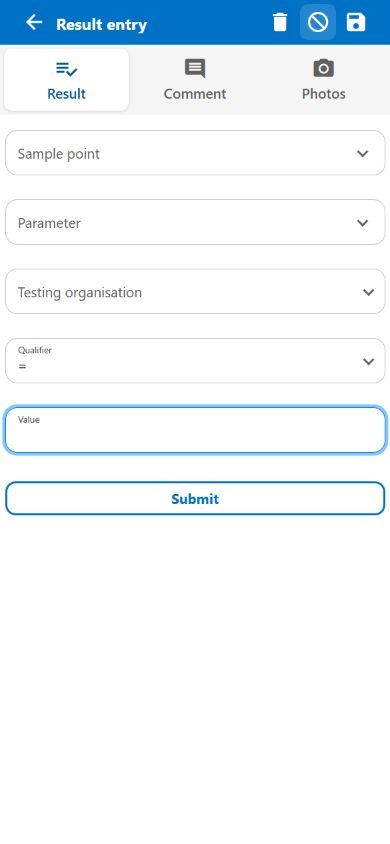
- For a scheduled result, tap the intended task and check its fixed sample point and parameter. For an ad hoc result, tap Add ad-hoc result (+) and choose the point, parameter and Testing organisation.
- Enter the value or lookup option. Where offered, choose the qualifier and a compatible UOM.
- Use Comment for observation context or a required explanation. Use Photos and the plus button to choose relevant images.
- Tap Submit or the save icon. Resolve any validation message and submit again if needed.
- Open Staged results from the menu to check the local entry.
Sync and confirm upload
- Reconnect to the internet and choose Sync from the Tasks menu.
- Wait for processing. Samples upload before results, and photos upload with their result.
- Check both Staged samples and Staged results. Successfully submitted entries are removed from their queues.
- If work remains, open the affected entry and review its Sync error. Correct the entry or resolve the reported account/data problem, then Sync again.
Common problems
- My result disappeared from Tasks after Submit.
- Look in Staged results. Entry removes it from Tasks while it waits for upload.
- Sync is disabled or work remains staged.
- Check the connection. Offline status disables Sync. Review both queues and any Sync error before assuming the work has uploaded.
- A result requires sampling first.
- Record its parent sample as Sampled on the device, or submit that sample to the server and download it. Not sampled does not unlock the associated result.
Need help with your setup?
Your configuration and permissions affect the fields and actions available. Contact your administrator or info@aquantify.com for assistance.
Updated 9 October 2026 · Screens show the Aquantify web and mobile interfaces.