
Before you start
You need access to Data > Reports and an available report definition. Report choices, formats and parameters depend on your organisation’s configuration.
Request the report
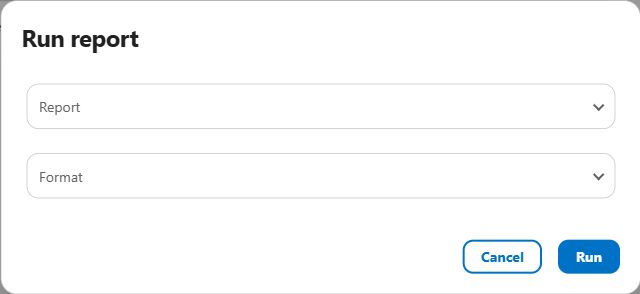
- Open Data > Reports and click Run.
- Choose the Report and Format.
- Complete any report Parameters that appear. Check the intended dates, locations and other inputs.
- Click Run and wait for processing.
Check the status and download
| Status | What to do |
|---|---|
| Pending | The request is waiting for processing. |
| In progress | The report is being generated. Wait for its outcome. |
| Finished | Select its row and choose More > Open or Download. |
| Failed | Review the related background job’s Reason and check the definition and inputs before requesting another run. |
| Cancelled | Check the recorded outcome before requesting a replacement. |
For Excel output, download the file and open it in an application that supports the format. Check the headings, dates, units and representative records before sharing the output.
Common problems
- Open or Download is unavailable.
- Check that the run has reached Finished.
- The report failed.
- Check the background job’s Reason and review the required parameters and report definition with an administrator.
- The output is empty.
- Check the date and location scope, parameter values and access before interpreting the report as an absence of measurements.
Need help with your setup?
Your configuration and permissions affect the fields and actions available. Contact your administrator or info@aquantify.com for assistance.
Updated 9 October 2026 · Screens show the Aquantify web and mobile interfaces.