
Run reports
Use Data > Reports to submit a report run and review its status.
- Open Data > Reports, select the report you want, and click its Run report play icon.
- Select a Format.
- Complete the report’s Parameters if shown.
- Click Run.
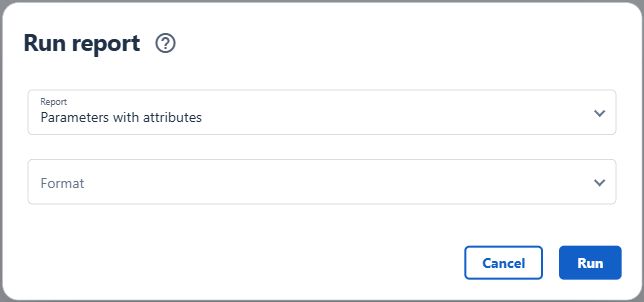
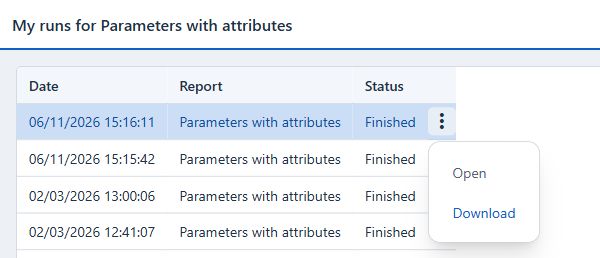
- Follow the run in My runs. When it shows Finished, select it and use its More menu to Open or Download the output.
Browse your runs
My runs shows the runs you started and scheduled runs for which you are a recipient, subject to your report access. Select a report to see its runs. Click Deselect above the report list to see your full history.
Drag the divider to resize the panes. Click it to hide My runs, and click again to reopen the pane at its previous width. Aquantify remembers the pane’s width and whether it is open in your browser.
To resize a table column, drag the edge of its heading. To restore the default column settings, right-click a heading and choose Reset columns.
Check parameters and output
Review every required report parameter and confirm the intended time and location scope before running. Inspect the returned headings, dates and representative records before exporting or sharing the output. If the report is empty, check parameter values and access before treating the absence as a data conclusion.
Track the run
| Status | Meaning and next step |
|---|---|
| Pending | The request has been accepted and is waiting for processing. |
| In progress | The report is being generated. Wait for its outcome; Cancel is offered for a run in this state. |
| Finished | The output is ready. Select the run and choose More > Open or Download. |
| Failed | Check the related background job’s Reason and review the definition, queries and parameter values before requesting another run. |
| Cancelled | The run was cancelled. Check its recorded outcome before requesting a replacement. |
The output uses the selected format: PDF, template-based Excel or Excel (from queries). Open hands the generated file to a new browser tab; Download saves it. Check headings, units, dates and representative records before distributing the output.
Diagnose missing or failed output
Check the selected definition and every input, including issue identifiers and date boundaries. Excel (from queries) needs configured datasets. Use Background jobs to read a processing error and Notifications for completion messages. An empty report needs a scope and access check before it is interpreted as an absence of measurements.
See Manage report definitions for setup and Schedule reports for recurring email delivery.