
Add a parameter
Define the measurement once, then associate it with the required groups and methods. Search existing and inactive parameters before creating another definition.
Identity and data type
- Open Parameters > Parameters and select the intended group, or browse all parameters.
- Use Add new in the parameter pane.
- Enter Name, Description and a unique Reference where calculations will use it.
- Select the Data type appropriate to the result, and review Active.
- Save the Basic definition.
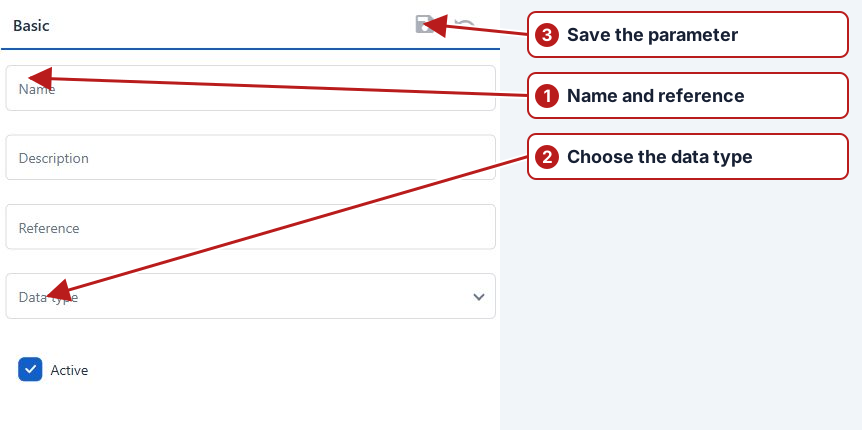
A lookup is appropriate for controlled observations; a decimal is appropriate for a measured number. Review the choice before assigning methods and recording results because dependent units and results can restrict later changes.
Custom values and group membership
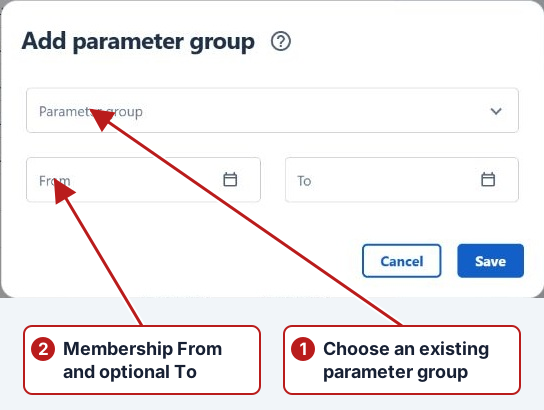
Add laboratory codes or classifications in the saved record’s Custom panel and save that panel. Use Groups to confirm the intended memberships and their From/To dates; do not assume selecting a browser group is the only membership the record needs.
Default and additional methods
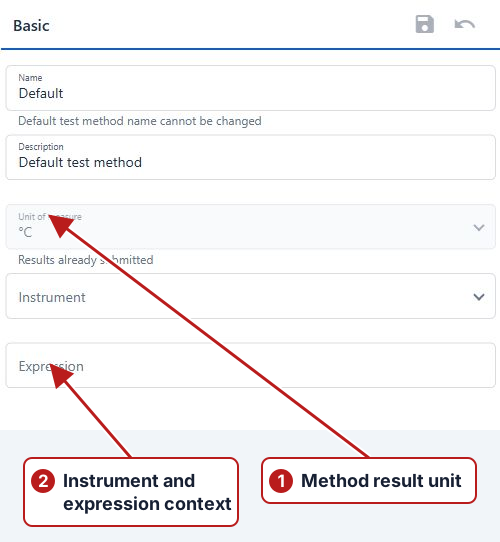
Open Test methods and configure the default method’s unit, instrument and optional expression. Additional methods can apply at specific points or groups over date periods. Keep historical instrument context when a meter changes. The default supplies the fallback when no applicable additional method is chosen.
Add an expression if needed
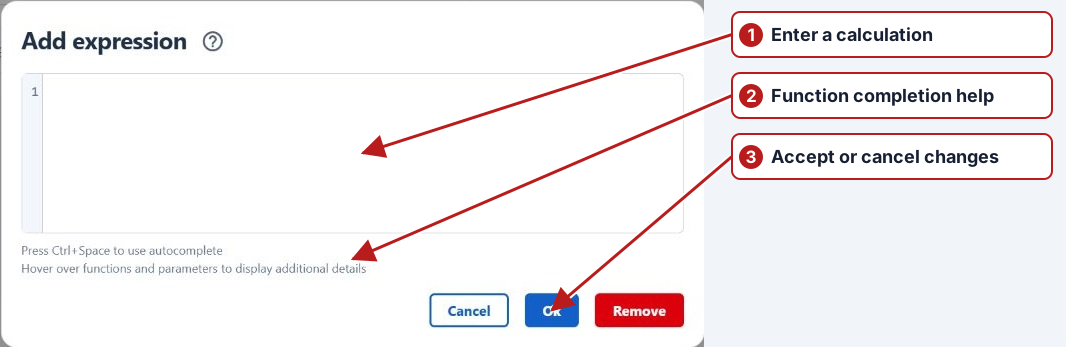
Open Expression, type the formula and use completion and hover help to select valid references, functions and units. For example, Latest(FlowA, L/s) + Latest(FlowB, L/s) sums two flow sources at the calculated task’s location. Click Ok to validate, then Save the method.
Check the result
Reopen the parameter from the intended group and inspect Attributes, Test methods and Groups. A definition alone does not schedule measurements: add it to the appropriate program sample definition or use ad hoc result entry when appropriate.
See Method applicability and Calculation examples.