
Define organisation import columns
Import mappings connect Aquantify targets to the laboratory file’s headings. They belong to the supplying organisation, so two labs can use different column layouts.
- Open Samples > Organisations and the supplying organisation.
- Check its chosen laboratory parameter and sample-point identifier attributes.
- Open Import column mapping.
- Open a target row such as Parameter identifier.
- Enter the exact source Column name and Save that mapping.
- Repeat for location identifier, sample date/time, value, UOM and other required targets.
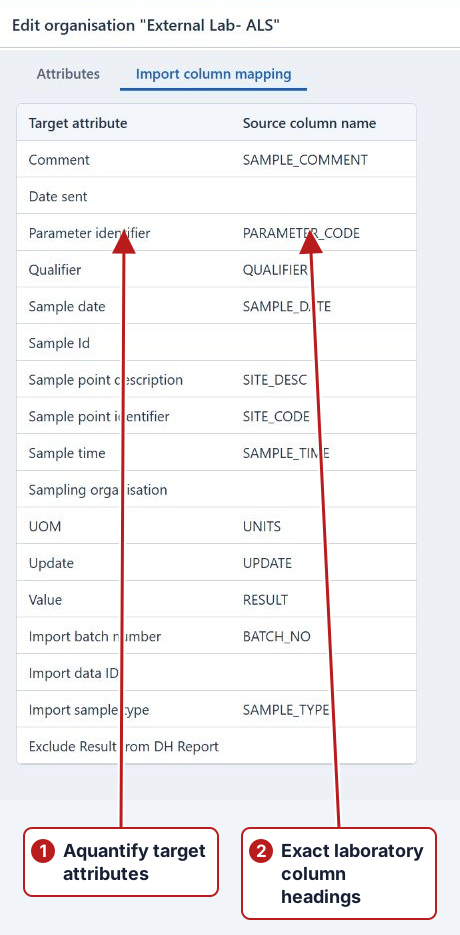
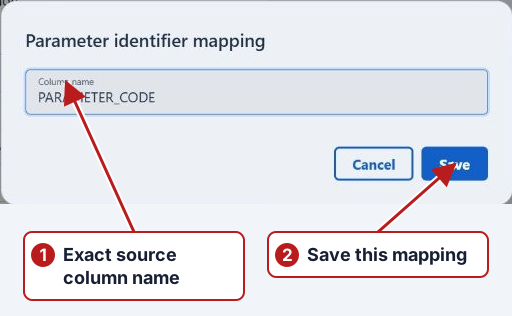
For example, map Parameter identifier to PARAMETER_CODE, whose cells contain the lab’s actual codes. The column name is not the code value. Parse a representative file and review its rows before submitting results. See Complete import setup.