
Dashboards
A dashboard brings charts, recent results, compliance summaries, tables and maps into one work area. Open Dashboard from the main navigation, then use Configure to choose an available dashboard. What you can see and edit depends on your account and the dashboard’s assigned roles.
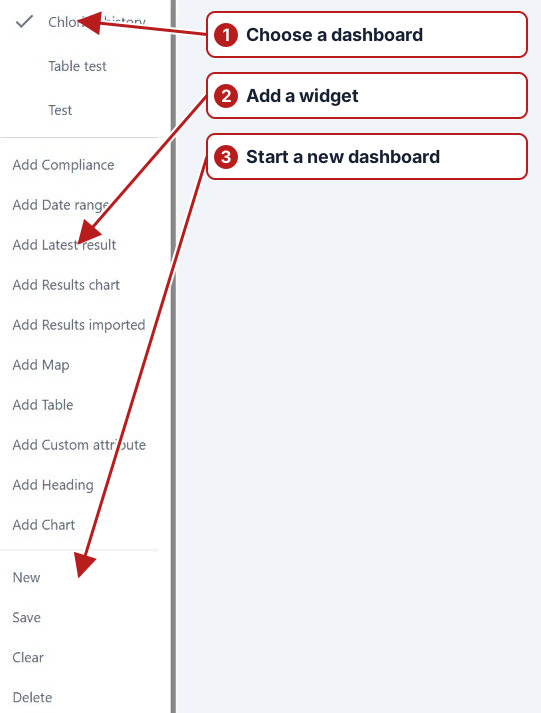
Create a dashboard
- Open Configure > New.
- Choose an Add widget action, such as Add Latest result, Add Chart or Add Table.
- Open the widget’s Settings, choose its data and display options, then save the widget configuration.
- Drag widgets to arrange them. Drag a resize handle to give a chart, table or map enough space.
- Open Configure > Save. Enter a name, review View roles and Edit roles, then click Save.
Viewing and editing access
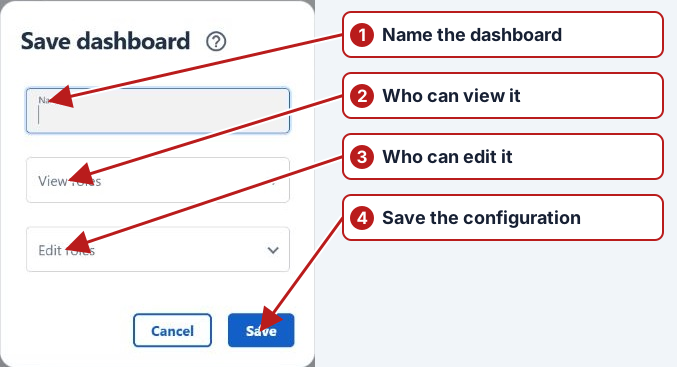
View roles share the dashboard with the intended audience. Edit roles identify roles allowed to maintain its configuration. Creating dashboards requires report setup permission. Editing also requires that permission and ownership or an assigned edit role. Sharing a dashboard does not replace the permissions needed to access its underlying data.
Use a dashboard
Review the date range and any custom-attribute selectors before interpreting the widgets. A selector affects widgets configured to use its context field; it is not automatically a filter for every widget. Refresh a widget where that action is available. A saved Chart widget opens its chart in another tab.
Change or remove a layout
Open a widget’s Settings to change or remove it, then save the dashboard. Clear removes widgets from the layout being edited; save only if you intend to keep that change. Delete removes the saved dashboard after confirmation. Cancelling an unsaved-change prompt keeps you on the current dashboard.
See Dashboard widgets for data sources and an example that links selectors to a table.