
How to use Manage filter
Use Manage filter in a page's toolbar to save the current filters, reuse saved filters or clear the editable filter fields. Saved filters are associated with the page on which they were created.
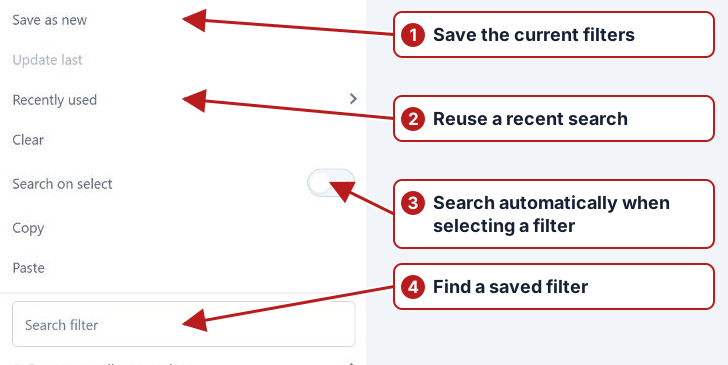
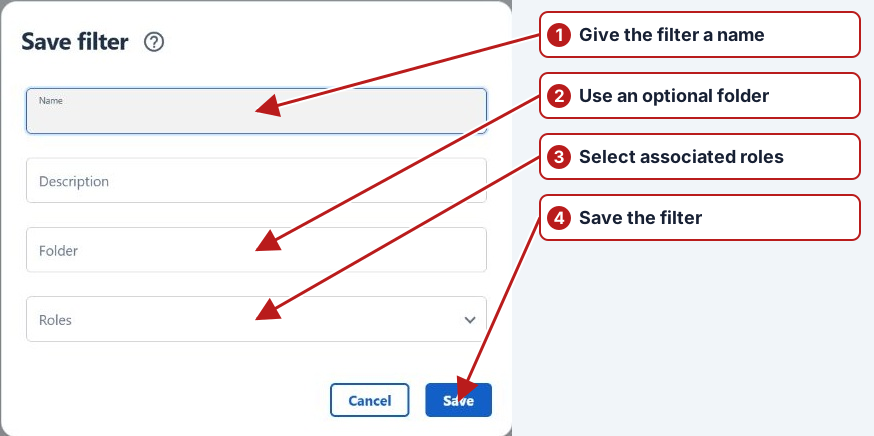
Save a new filter set
- Add the filter fields you need and set their operators and values.
- Open Manage filter and choose Save as new.
- Enter a Name. You can also enter a Description and a Folder name.
- Use Roles to select the roles to associate with the saved filter.
- Click Save.
Find and apply a saved filter
- Open Manage filter.
- Enter part of a name, description or folder name in Search filter to narrow the saved filter list.
- If the filter is in a folder, click the folder to open its submenu.
- Select the saved filter to apply its fields and values.
- Click Search to retrieve matching records, unless Search on select is enabled.
Update a saved filter
- Apply the saved filter you want to update.
- Change the fields, operators or values.
- Open Manage filter and choose Update last.
- Review the name, description, folder and roles, then click Save.
Reuse a recent search
Open Manage filter > Recently used and select an entry. Recent entries show the date and time of the search. As with saved filters, click Search if Search on select is off.
Clear filters
Choose Manage filter > Clear to remove the editable filter fields. Click Search to refresh the records.
Copy and paste filters
Choose Copy to copy the current filter definitions to the clipboard. On a compatible page, choose Paste to replace its editable filters with the copied definitions, then click Search.
Delete a saved filter
- Find the saved filter in the main list or its folder submenu.
- Click its Delete button and confirm the deletion when prompted.