
Add, edit and remove parameters in a group
A group membership associates an existing parameter with a selection of measurements. Creating a parameter, editing its definition and removing a membership have different effects.
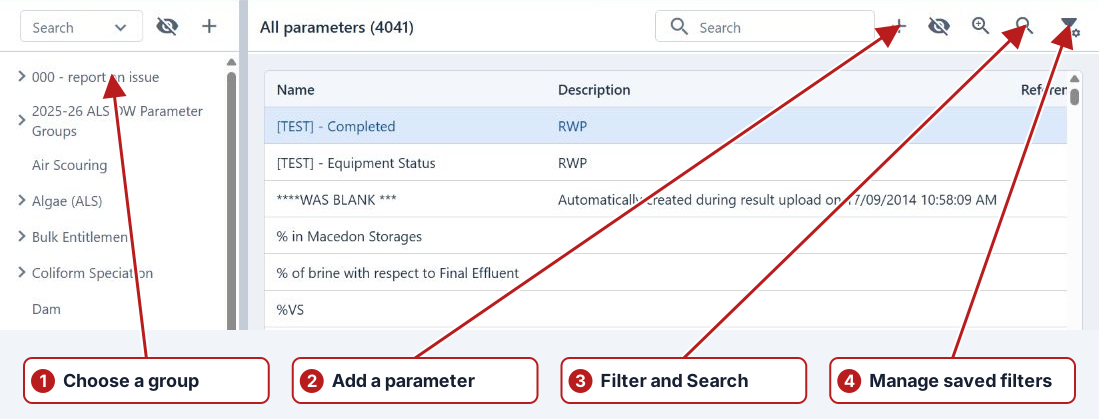
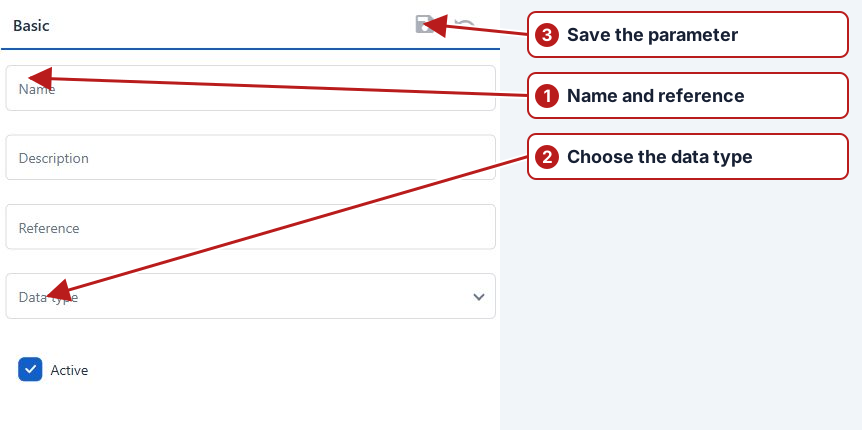
Add a new parameter
Select the group and use Add new in the parameter pane. Set Name, Description, Reference, Data type and Active, then save. Configure the saved parameter’s default method and any additional location/date methods. Confirm its Groups associations after creation.
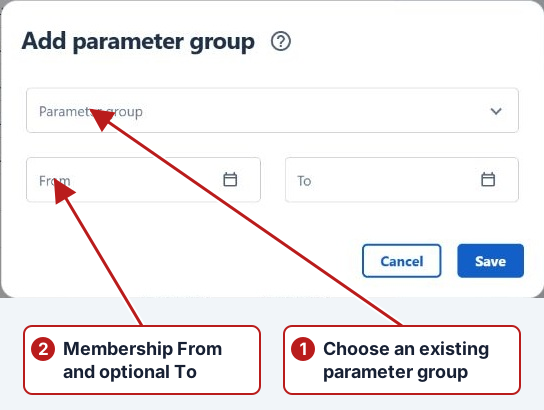
Add an existing parameter
Find the existing record, open Groups and Add new, select the group and set From and optional To. Save the association. Dragging between the parameter list and hierarchy is another offered workflow; review whether the confirmation is a copy or a move before proceeding.
Holding Ctrl during the supported drag copies membership; a move from a selected group changes its association. Reopen Groups afterwards to confirm the outcome. Copying membership does not duplicate the parameter or its results.
Edit a parameter
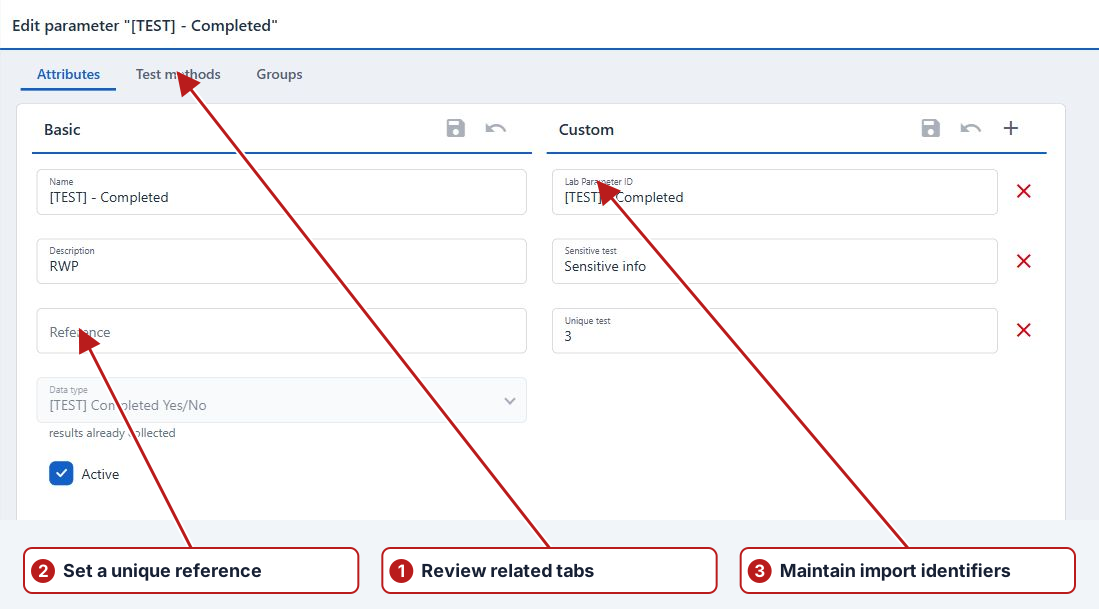
Open the parameter from the group and edit the required Basic, Custom or method fields. Save in the relevant panel. Because the parameter is shared, changing its name, method or reference is not confined to the group from which you opened it.
Remove from the group
Use the membership controls in Groups and review the association’s dates. If the browser offers Delete from group, review that option specifically. Removing a membership and deleting the underlying parameter are separate actions. Check other memberships and existing results before using a record-level deletion.