
User interface
The Aquantify desktop web app uses a navigation menu, a site selector and a main work area. The controls available to you depend on your permissions and the page you are viewing.
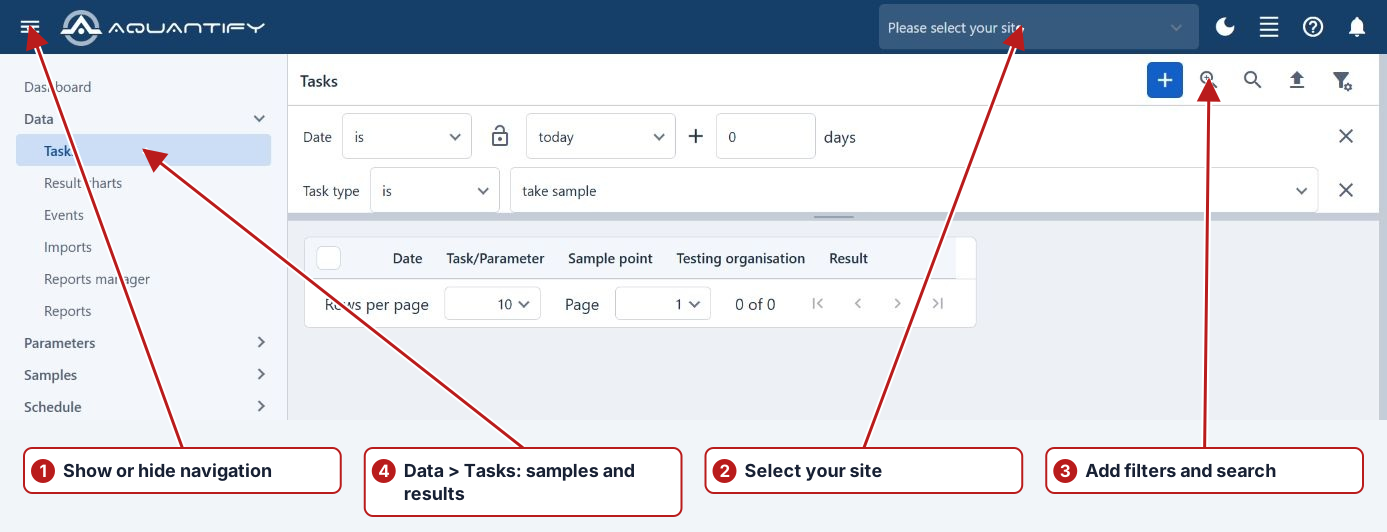
Find your way around
- Use Toggle navigation at the top left to show or hide the main menu.
- Expand a menu group and select a page. For example, choose Data > Tasks to work with samples and results.
- Use the site selector in the top bar to choose the site you are working with.
- Use the controls beside the page title to add records, filter, search or export where those actions are available.
Search and filter
- Click Add filter and select a field.
- Set the field's operator and value. Add other filters as needed.
- Click Search to retrieve matching records.
- Use Manage filter to save or reuse a set of filters.
Work with tasks and results
On Data > Tasks, double-click a sample or result row to open it. You can also right-click a row to see its available actions. Select a row to show its More button, which opens the same action menu.
Actions can include Edit or Open, Show history, Browse limits, Browse events, Go to program and Go to scheduler, depending on the record and your permissions.
Use the link beside a parameter or sample point in the Tasks table to open its details in another browser tab.
Save changes
Dialogs show the fields and actions available for the selected record. Use Save to submit changes or Cancel to close the dialog. For result entry, Prev and Next let you move between records when those buttons are available.
Use help
Choose the ? icon beside Notifications in the app header to open help for the current page in a new browser tab. Your working page and unsaved edits stay open. Detail tabs can offer a more specific topic; otherwise they use their parent page’s help. Pages without a specific topic open Welcome.
Select Help from the main menu, then choose a topic from the help tree. Drag the divider beside the tree to resize the topic list.
Dashboards and processing messages
Use Dashboards for a configurable work area and the top-bar Notifications bell to follow background operations.