
Custom attributes
Custom attributes add structured information to supported entity types. Typical examples are a financial year on a Program, an external laboratory code on a Parameter, or a location classification on a Sample point. They can support filtering, imports and reporting.
Define the field
- Open Manage > Custom attributes and Add new.
- Give the attribute a meaningful name and description.
- Select its Entity type and Data type.
- Select a lookup list where the attribute uses controlled choices.
- Review Unique where offered, then save the definition.
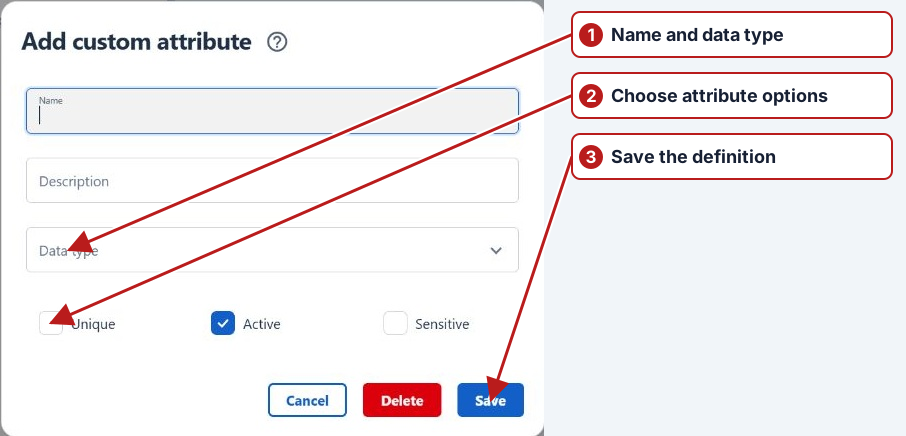
The entity type matters: a Parameter identifier cannot supply the sample-point identifier expected by an organisation. Choose a string-like identifier type when numeric formatting would remove meaningful leading zeros. A lookup such as Financial year keeps values consistent across programs.
Associate a value with an entity
Open the record’s Attributes page and its Custom panel. Add the defined attribute. For a value such as text or a lookup choice, enter or select the value, then Save that panel. Basic and Custom panels can have separate Save controls. Creating a field definition does not automatically add a value to every record.
Choose Blob as the Data type for a file field. Each field holds one file per saved record. In the Custom panel, add the field and use Upload file. Custom attribute filters, spreadsheet imports and tabular exports use supported values such as text and lookup choices.
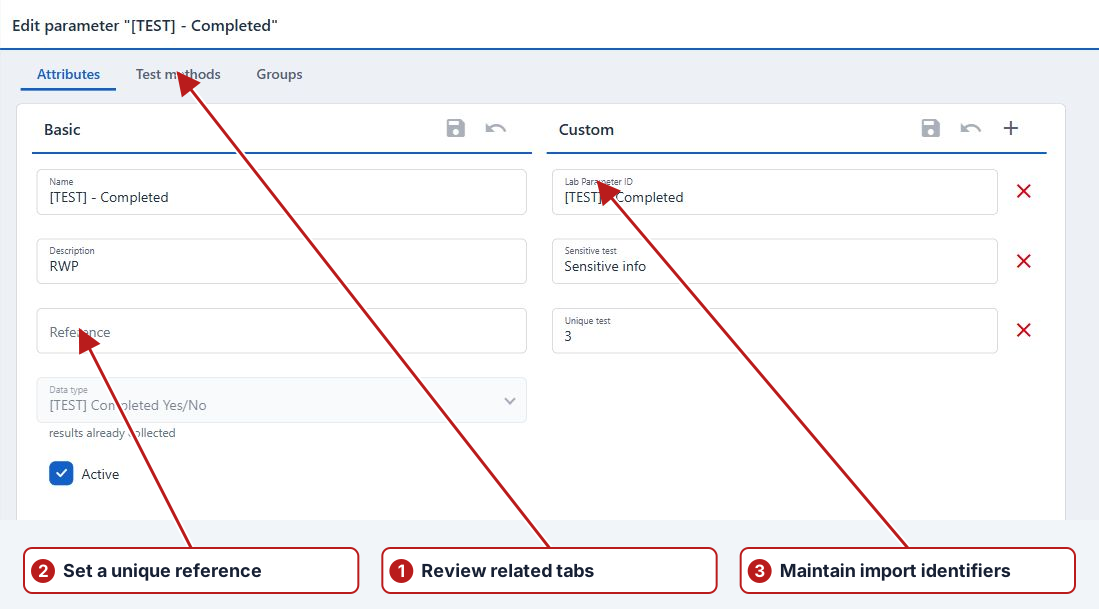
Use attributes for file imports
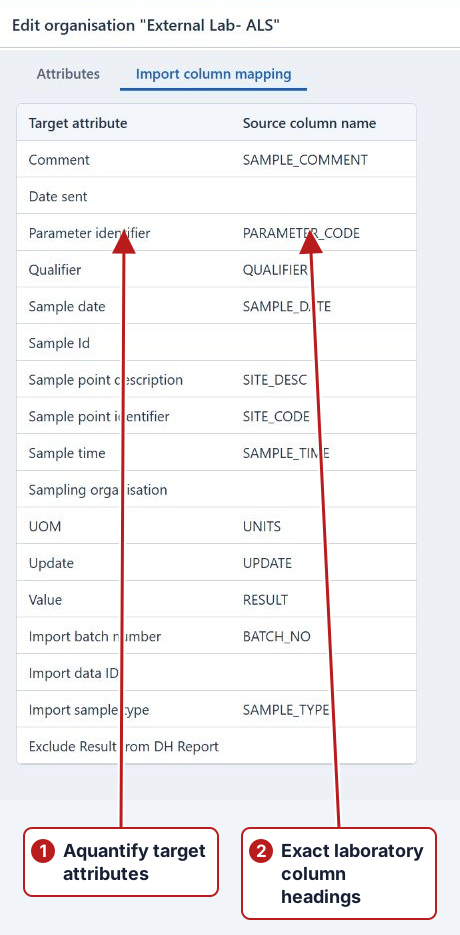
Create a Parameter attribute named for the lab’s parameter code and a Sample point attribute for its location code. Populate the values on the relevant records. On the organisation, choose these as Lab parameter attribute and Lab sample point attribute. Finally, map the file’s column headings in Import column mapping.
| Record | Lab A code | Lab B code |
|---|---|---|
| Same ammonia parameter | NH3-N | AMMONIA |
| Same inlet point | INLET-01 | SP-009 |
Separate attributes can preserve both laboratories’ identifiers. Each organisation selects the attribute that matches its files. Keep expression references separate from import identifiers.
Filter and review attribute values
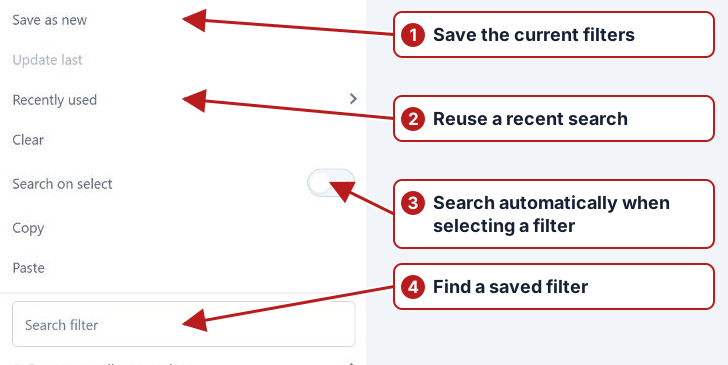
Use a browser’s Add filter to choose a supported custom-attribute criterion, set the desired value and Search. For example, a Program Financial year lookup value can find the current plan and its previous-year template. Save that filter set through Manage for reuse.
See Complete import setup and Financial-year program example.