
Create an issue
Use issues to record a non-conformance, investigate a result or track another problem that needs action.
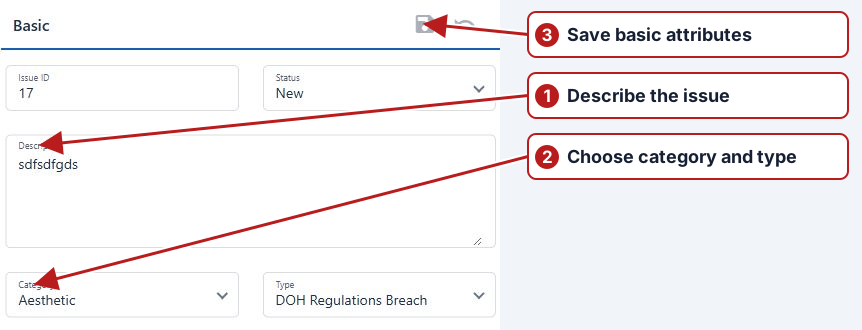
Create and save
- Open Issues > Issues and click Add new.
- Enter a Description and select Category and Type.
- Review Status, set Occurred on to a past date and time, and select Assigned to.
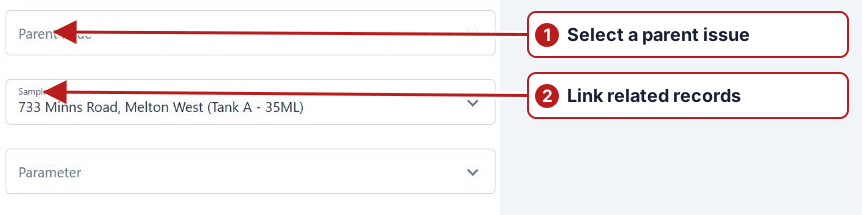
- Select a Sample point and Parameter if relevant. Select Parent issue if this belongs to an existing investigation.
- Click Save in the Basic panel.
Record the investigation
After saving, use Causes and Actions to select a configured item, enter a comment and click Add. Use Other info for additional comments, Child issues for related issues, Map for linked sample points and History to review changes. Custom attributes are available on a saved issue.
Use an appropriate scope
A maintenance issue can describe a faulty pump at a sample point without a breached parameter. A breach investigation should retain the affected result and parameter context. Choose the category/type that makes the issue searchable and assign the person responsible for progressing it.
Review the saved issue
Check its ID, assignment and status after saving. Add causes, actions and supporting comments, then review History. Closing a parent can prompt changes to child statuses; check that relationship before accepting a transition.