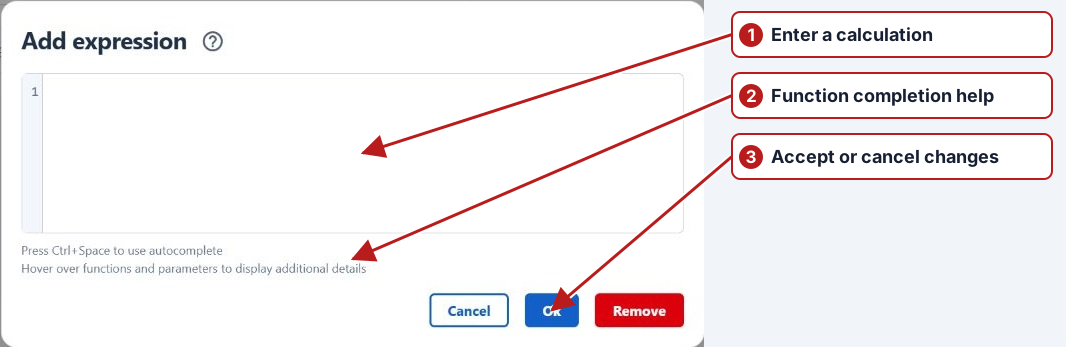
How to Use Functions, References and Operators in an Expression
Using References in an Expression
Using previously defined Parameter References in a Parameter Expression to automatically calculate a Result is a simple process. Suppose we have two Parameters (A and B) and we have defined a Reference for each. We can easily automatically calculate a third Parameter C Result using the Result of Parameter A multiplied by the Result of Parameter B.
The set up for this would be as follows -
| Parameter | Variable | Expression |
|---|---|---|
| Parameter A | Parameter_A | |
| Parameter B | Parameter_B | |
| Parameter C | Latest(Parameter_A, kg) * Latest(Parameter_B, kg) | |
The Schedule would look like this-
| Tasks | Scheduling relationship |
|---|---|
| Parameter A and Parameter B | Schedule the required source measurements |
| Parameter C: covers both source task periods | Its period must cover the applicable source task periods |
On the Data>Tasks screen you will notice that Parameter C has the calculated-expression indication (calculated)which indicates that this Parameter has an Expression and that this Result will be automatically calculated.
| Parameter A | Parameter B | Parameter C |
|---|---|---|
| 4 entered | Pending | Pending |
When the Result for both Parameter A and Parameter B have been entered, the Result for Parameter C is automatically calculated.
| Parameter A | Parameter B | Parameter C |
|---|---|---|
| 4 | 5 | 4 × 5 = 20 |
Using LatestAvailable in an Expression
Use LatestAvailable when a calculation should use available submitted values while newer source tasks are still pending. For example: LatestAvailable(Parameter_A, kg) * LatestAvailable(Parameter_B, kg).
Each function selects the submitted Result with the latest Result date from source tasks whose periods overlap the calculated task's range. Pending tasks and submitted No result entries are ignored. If Parameter A has an earlier submitted value in that range and a newer pending task, the calculation can use the earlier value. Each referenced Parameter still needs a submitted value in the overlapping range; otherwise the calculation remains pending.
Use LatestAvailable(Parameter_A, kg, SPoint_1) for a specific Sample Point, or LatestAvailable(Parameter_A, kg, SPoint_1, SPoint_2) to select the latest submitted value across several points. Without a Sample Point Reference, the calculated task's Sample Point is used. Leave the UOM argument empty for unitless, text or lookup Results, for example LatestAvailable(Status,,SPoint_1).
Using the Diff Function in an Expression
Suppose we have a meter that we want to read everyday and we want to know the volume that passed through the meter from one day to the next. To do this we can define a Parameter called ABC Meter Reading with an associated Reference. We also define another Parameter called ABC Meter Read Diff with an associated Expression which automatically calculates the volume that passed through the meter between reads.
The set up for this would be as follows -
| Parameter | Reference | Expression |
|---|---|---|
| ABC Meter Read | ABC_Read | |
| ABC Meter Read Diff | Diff(ABC_Read ,ML) |
The Schedule would look like this-
| Tasks | Scheduling relationship |
|---|---|
| ABC Meter Read: daily readings | Schedule the required source measurements |
| ABC Meter Read Diff: matching calculation periods | Its period must cover the applicable source task periods |
As each Result is entered for the ABC Meter Read the ABC Meter Read Diff is automatically calculated.
| Reading | Difference |
|---|---|
| 400 | 0 — first reading |
| 450 | 50 |
| 500 | 50 |
Using the Total Function in an Expression
Continuing on from the above example, suppose over time we want calculate the total volume that passes through the meter. To do this we would define a Parameter called ABC Meter Vol Total with an expression that automatically calculates the total volume.
The set up for this would be as follows -
| Parameter | Variable | Expression |
|---|---|---|
| ABC Meter Read | ABC_Read | |
| ABC Meter Read Diff | Diff(ABC_Read, ML) | |
| ABC Meter Total Volume | Total(ABC_Read, ML) |
The Schedule would look like this-
| Tasks | Scheduling relationship |
|---|---|
| ABC Meter Read: daily readings | Schedule the required source measurements |
| ABC Meter Read Diff and ABC Meter Vol Total: matching periods | Its period must cover the applicable source task periods |
As each Result is entered for the ABC Meter Read both the ABC Meter Read Diff and the ABC Meter Vol Total are automatically calculated.
| Reading | Difference | Total since first reading |
|---|---|---|
| 400 | 0 | 0 |
| 450 | 50 | 50 |
| 500 | 50 | 100 |
An example with a Meter Flip
A Parameter can be associated to an Instrument. In this example we are going to associate the ABC Meter Read Parameter to a Meter which has been defined as having a Max value on dial of 999. This means the highest reading before the meter flip will be 999. The set up for this example is exactly the same as for the Using the Total Function in an Expression example above.
To force the meter flip we will enter the following Readings -
| Date | Reading |
|---|---|
| 13/2/2015 | 680 |
| 14/2/2015 | 999 |
| 15/2/2015 | 220* meter has flipped |
As the Readings are entered both the reading difference and total volume calculations take the meter flip into account.
| Date | Reading | Difference | Total |
|---|---|---|---|
| 13 February 2015 | 680 | 0 | 0 |
| 14 February 2015 | 999 | 319 | 319 |
| 15 February 2015 | 220 | 220 | 539 |
Using the Avg Function in an Expression
You can define a Parameter that has an Expression which uses the Avg function to automatically calculate the average Result of another Parameter. Suppose we want to automatically calculate the average Result for Parameter A (defined above) which has been tested over 4 days. To do this we need to define Parameter D which will use the Avg function in it's Expression.
The set up for this would be as follows -
| Parameter | Variable | Expression |
|---|---|---|
| Parameter A | Parameter_A | |
| Parameter D | Avg(Parameter_A, kg) |
The Schedule would look like this-
| Tasks | Scheduling relationship |
|---|---|
| Parameter A: four daily tasks | Schedule the required source measurements |
| Parameter D: one period covering all four days | Its period must cover the applicable source task periods |
On the Data>Tasks screen you will notice that Parameter D has the calculated-expression indication (calculated)which indicates that this Parameter has an Expression and that this Result will be automatically calculated.
| Parameter A | Parameter D |
|---|---|
| Some applicable tasks Pending | Avg remains Pending |
When all the Results for Parameter A have been entered, the Result for Parameter D is automatically calculated. That is, there can be no Pending results.
| Values (kg) | Average (kg) |
|---|---|
| 4, 5, 7, 8 | 24 / 4 = 6 |
| 4, 5, 7; fourth task submitted No result | 16 / 3 ≈ 5.333 |
Using the Median Function
The Median is the middle value of a list of ordered numbers.
For the following list of numbers - 8, 5, 4, 10, 7
- Firstly the numbers are put in order - 4, 5, 7, 8, 10
- Then the median is determined which in this example is 7
For the following list of numbers - 8, 5, 4, 10, 7, 11
- Firstly the numbers are put in order - 4, 5, 7, 8, 10,11
- Then the median is determined which in this example is (7+8)/2 = 7.5
Setting up a Parameter (Param_Med_Four) to use the Median function -
| Expression | Selection / purpose |
|---|---|
Median(Param_Four, kg)
|
Use the applicable period and the same Sample Point, or include a location Reference explicitly. |
To visualise the set up on the Schedule calendar -
| Tasks | Scheduling relationship |
|---|---|
| Param_Four: source tasks | Schedule the required source measurements |
| Param_Med_Four: one period spanning the required source values | Its period must cover the applicable source task periods |
The Median is calculated when ALL dependent Results have been entered. That is, there can be no Pending results.
Using the Rolling Median and Rolling Average Functions
The system functions RollingMedian and RollingAvg calculate the Median and Average respectively for those dependent Results that have been entered. For example if a dependent Result is either Pending or a No result has been entered, both the RollingMedian and RollingAvgResults will be calculated for the Results that have been entered.
For example the Parameter Param_Four was used the gather the data with corresponding Parameters using the 4 functions -
- Param_Four Median - used the calculate the Median
- Param_Four Average - used the calculate the Average
- Param_Four Rolling Median - used the calculate the Rolling Median
- Param_Four Rolling Avg - used the calculate the Rolling Average
To visualise the scheduled Parameters -
| Tasks | Scheduling relationship |
|---|---|
| Param_Four: source measurements | Schedule the required source measurements |
| Param_Four Median / Average / Rolling Median / Rolling Avg: cover the required period | Its period must cover the applicable source task periods |
Entering the first Result for Param_Four -
| Sources | Normal aggregates | Rolling aggregates |
|---|---|---|
| 4 kg entered; remaining tasks Pending | Pending | RollingAvg = 4; RollingMedian = 4 |
After all dependent Results have been entered -
| Source values (kg) | Avg / Median | RollingAvg / RollingMedian |
|---|---|---|
| 4 entered; four pending | Pending | 4 / 4 |
| 4, 5, 7, 8, 10 entered | 6.8 / 7 | 6.8 / 7 |
| 4, 5, 7, 8 entered; final task submitted No result | 6 / 6 | 6 / 6 |
One dependent Result is 'No result' -
| Sources | Average | Median |
|---|---|---|
| 4, 5, 7, 8 kg entered; fifth task submitted No result | 6 kg | 6 kg |
Using the DiffDays Function in an Expression
The system function DiffDays calculates the number of days between the latest result and the previous result.To illustrate how this function could be used to calculate the volume passing through a meter per day -
| Parameter/Ref | UOM | Sample Point Ref | Expression |
|---|---|---|---|
| Reading | ML | SPHMW | |
| Reading_Diff_PerDay | ML/day | Diff(Reading, ML, SPHMW)/DiffDays(Reading,SPHMW) |
One the schedule -
| Tasks | Scheduling relationship |
|---|---|
| Reading at SPHMW: successive meter reads | Schedule the required source measurements |
| Reading_Diff_PerDay: covers the relevant reading interval | Its period must cover the applicable source task periods |
Results -
| Previous read | Current read | Elapsed whole days | Diff / DiffDays |
|---|---|---|---|
| 100 ML | 160 ML | 3 | 60 / 3 = 20 ML/day |
A More Complicated Example
To demonstrate a more complex example, the Ammonia Dose Rate will be automatically calculated using the Ammonia Flow Rate, the Raw Flow Rate and the Bore Flow Rate in a fairly complex formula.
The set up for this would be as follows -
| Parameter | Reference | Expression |
|---|---|---|
| Ammonia Flow Rate | AmmoniaFlowRate | |
| Raw Flow Rate | RawFlowRate | |
| Bore Flow Rate | BoreFlowRate | |
| Ammonia Dose Rate |
(Latest(AmmoniaFlowRate, L/h) * 0.25 * 0.9) / (( (Latest(RawFlowRate, L/s) + Latest(BoreFlowRate, L/s)) * 3600 ) / 1000000) |
The Schedule would look like this-
| Tasks | Scheduling relationship |
|---|---|
| Ammonia Flow Rate; Raw Flow Rate; Bore Flow Rate | Schedule the required source measurements |
| Ammonia Dose Rate: covers the required source periods | Its period must cover the applicable source task periods |
When the Results for Ammonia Flow Rate, Raw Flow Rate and Bore Flow Rate have been entered, the Result for the Ammonia Dose Rate is automatically calculated.
| Reference | Requested unit |
|---|---|
| AmmoniaFlowRate | L/h |
| RawFlowRate | L/s |
| BoreFlowRate | L/s |