Add a sample point
- Open Samples > Sample points and select the required group.
- Click Add new in the sample points pane.
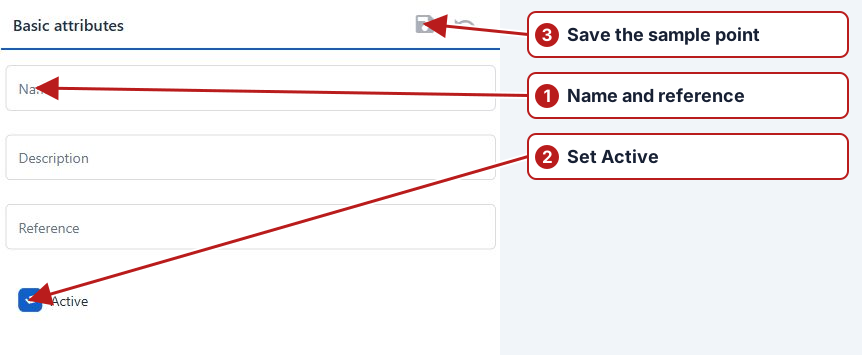
- On Attributes, enter Name, optional Description and Reference.
- Set Active and click Save in Basic attributes.
- Use the additional tabs available after saving to review group membership and other details.
Reference and laboratory identity
Use a unique Reference for expressions that explicitly read this point. Store laboratory codes in appropriate Sample point custom attributes, then choose the matching attribute on each organisation. These identifiers serve different purposes.
Verify group associations
Open Groups on the saved point and confirm its intended Site/System hierarchy and any dated memberships. Search for the point from the group and check Active state before adding it to a program.