
Profile and account onboarding
Your sign-in identity and Aquantify access work together. An administrator invites the account and assigns roles; you sign in using the configured account flow and maintain your contact details through Profile.
Administrator: invite a user
- Open System > Users and search for the person’s existing account.
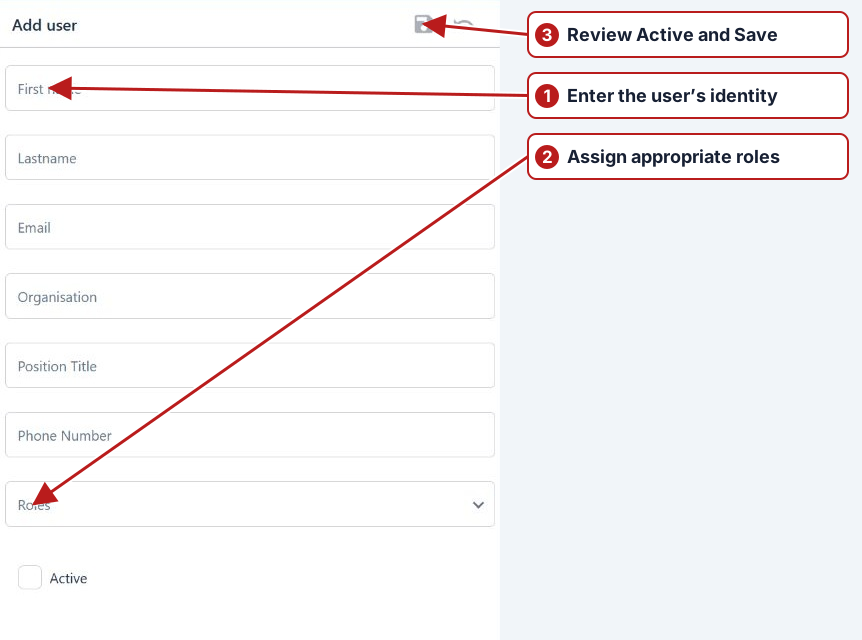
- If a new account is needed, click Add new. Enter First name, Lastname and the correct Email.
- Complete Organisation, Position Title and Phone Number where appropriate.
- Assign at least one suitable Role and review Active.
- Click Save, then review and confirm the invitation prompt. The app reports when the user has been invited.
User: sign in and confirm email
Use the invitation and the organisation’s Aquantify address. Complete its configured sign-in flow with the identity that matches the invited email address. If Home asks you to confirm your email, use that link and complete the confirmation from your mailbox.
Select the intended site in the top bar. If a page or expected records are unavailable, check the selected site, account Active state and assigned roles with an administrator. Successful authentication alone does not grant every module permission or partition.
Update your profile
- Open Profile from the main navigation.
- Review your name, email, organisation, position and phone details.
- Make the intended changes, then click Save. Use Undo to reload the saved details if you want to abandon an edit.
If access is missing
Give the administrator your account email, intended site and the page or records you need. Check all assigned roles and their partition access rather than creating a duplicate account. Authentication-provider credentials are managed through that provider’s account workflow.
See Security explained, Add or update a user and System partitioning.