
Find calculated parameters
Use the parameter browser to find methods with expressions.
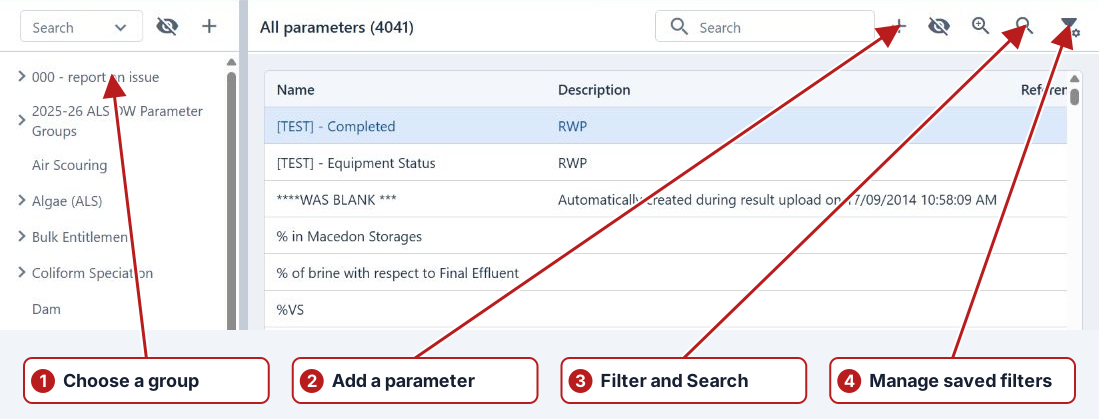
- Open Parameters > Parameters.
- Use Add filter and select Has expression. Set it to true.
- To narrow the search, add an Expression text filter.
- Click Search, open a parameter and review its Test methods.
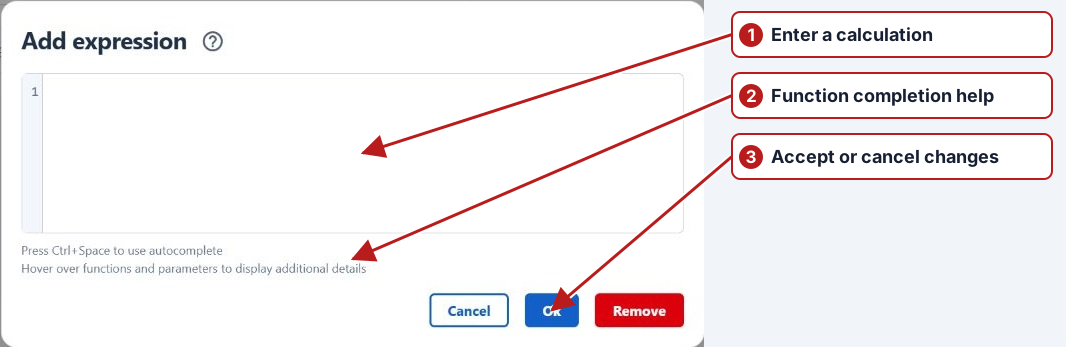
- Open a method’s Expression to inspect its formula. Cancel if you are only reviewing it.
Inspect a calculated result
Find the result in Data > Tasks and open it to view Calculation details. Review the expression and its source records. Calculated results are derived from sources rather than entered manually.
Troubleshoot the dependency
Open the parameter’s method to inspect the formula and its explicit source references. Inspect Calculation details on a representative result to see the actual sources used. Check the requested unit, location and date period.
The Windows Linked Parameter/Linked Sample Point expression browser is not a separate current menu page. Use parameter searches, method expressions and result calculation details for the corresponding investigation.