
Define a notification rule
A rule selects the events to notify and their delivery frequency.
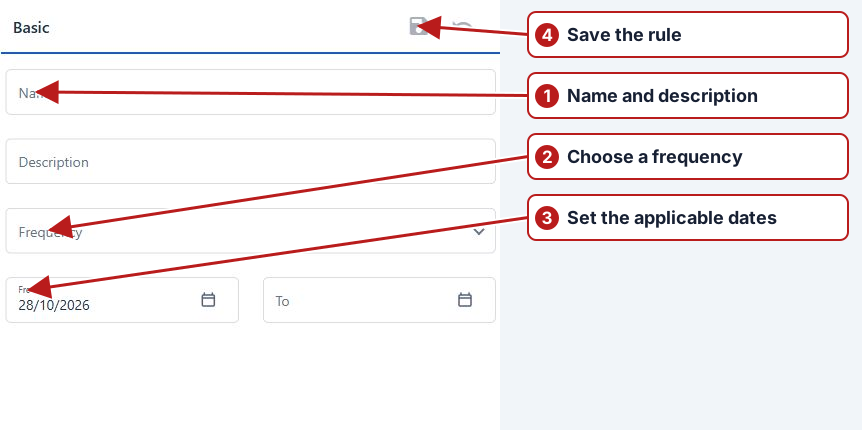
- Open Manage > Notification rules and click Add new.
- Enter Name and Description.
- Choose Frequency. Set weekdays, day of month or At time when offered.
- Review From and To, then click Save.
- Open Event types and select the required events.
- Review the Alert limit types, Parameters, Sample points and Sample point groups tabs offered for those events.
- Add the rule to a notification group with the intended recipients.
Scope and frequency
Choose the event that answers the intended question, such as an import success, failure or issue creation. Review the available entity scope, From/To and frequency. A broad rule can report unrelated activity; a success rule does not report failed files.
Connect recipients
To monitor missed scheduled deadlines, select Result overdue and add at least one parameter or location scope. See Notify on overdue results for setup, delivery timing and safeguards against broad notification scopes.
Associate the rule with a notification group containing the intended users. Review a matching event and group Active state when diagnosing delivery. See Complete notification workflow.