
Schedule Menu
Programs
System Set Up for Programs
Prior to setting up Programs there are some entities that you must first define in the system.
These include -
- Container Types - accessed from Samples>Container Types menu
- Sample Types - accessed from Samples>Sample Types menu
- Sampling Methods - accessed from Samples>Sampling methods menu
- Organisations - accessed from Samples>Organisations menu
- Holidays - accessed from Manage>Holidays menu
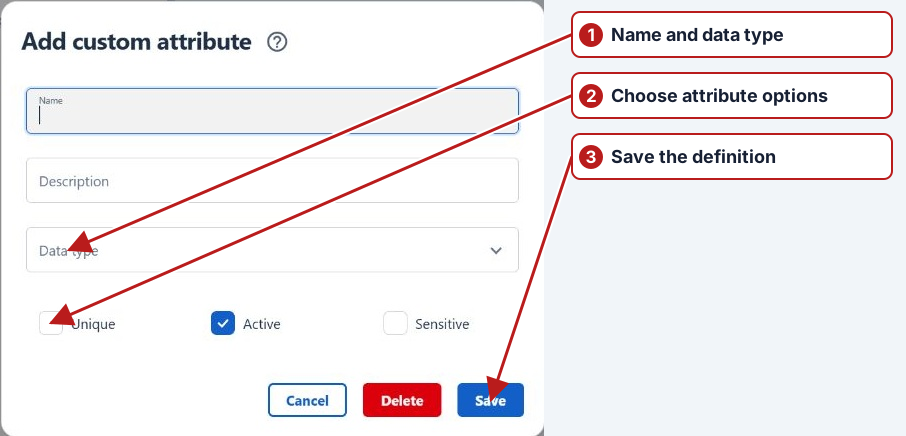
- Program Custom Attributes - accessed from Manage>Custom attributes menu
Some background information on Programs -
Generated Program Tasks
A Program Sample Definition will determine the Task(s) that are generated, and it is the Sample Type as well as the Sampling/Testing Organisation selections that determine what Tasks are generated.
There are two types of Tasks that can be generated by a Program -
- Take Sample
- Enter Result
A Sample Type that does not require sampling means that the Result is determined immediately without a sample being taken. For example it may be a meter reading, a probe reading or a field sample that is tested at the Sample Point. A Sample Type with Sampling required selected means that either your Organisation or some other Organisation can both take the sample and test the sample.
Some examples of the Program set up and the Tasks generated -
| Sample type | Sampling organisation | Testing organisation | Tasks generated |
|---|---|---|---|
| Water — immediate result | Not required | Internal | Enter result |
| Water — sampling required | Internal | Internal | Take sample; Enter result |
| Water — sampling required | Internal | External laboratory | Take sample |
| Water — sampling required | External laboratory | External laboratory | No internal Take sample or Enter result tasks |
Programs
Programs are used to schedule sampling and testing Occurrences.
When a Program is defined there are three tabs that require information to be entered -
- Attributes- which includes Basic Attributes and Custom Attributes
- Sample Definitions
- Test series
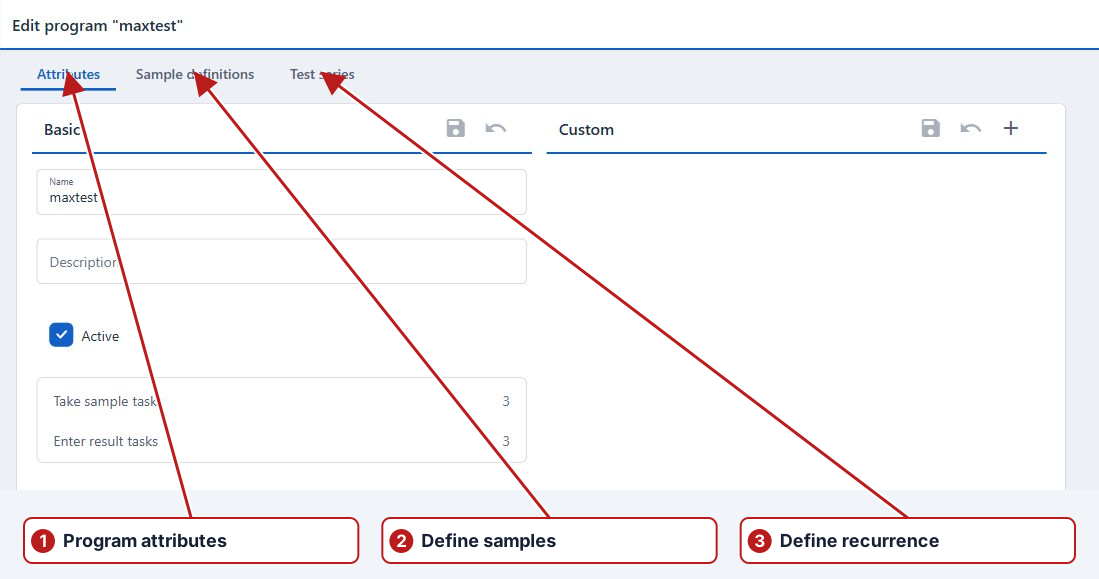
This screen is where you -
- Enter the Program Name and Description (if required)
- Select if the Program Is Active or not
- The number of Take Sample Tasks and Enter Result Tasks fields are non editable and are for your information only
- Associate the required Program Custom Attributes
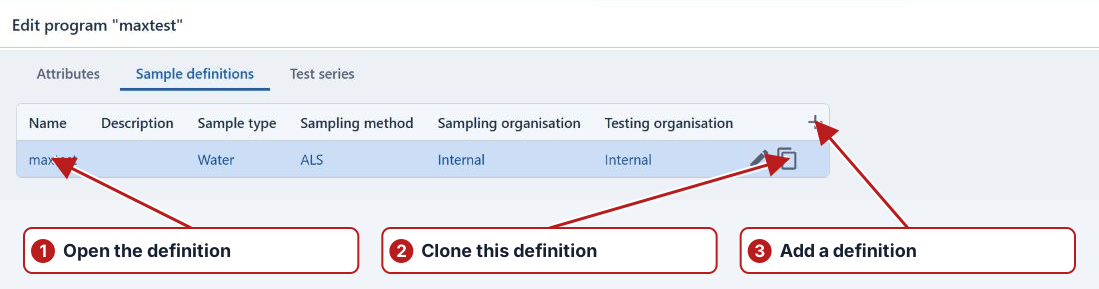
The program’s Sample definitions tab lists its definitions. Open a definition to work with the following sections -
- Sample Definitions browser
- Attributes tab
- Custom pane
Sample Definitions browser allows you to -
- Review the Sample definitions list and select the required row.
- Edit/Delete a Sample Definition when the available action permits it
- Clone a Sample Definition which copies the Basic and Custom Attributes from the original
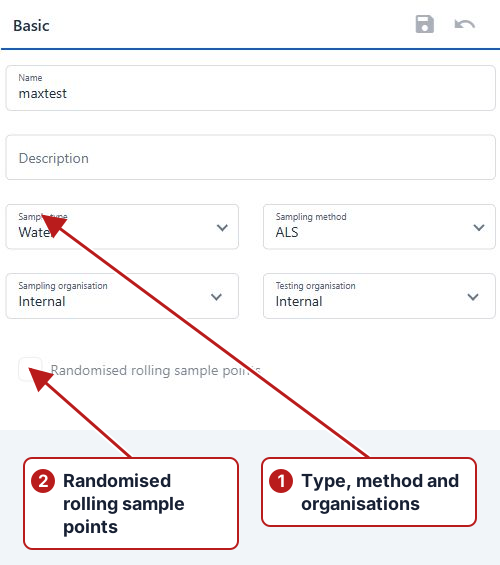
Attributes tab is where you -
- Enter the Name and Description (if required)
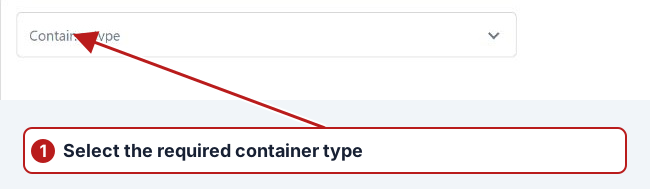
- Select the Sample Type, Method, Sampling and Testing Organisation
- Select the Sample Points (or Sample Point Groups), Parameters and Containers
- Choose to randomise rolling Sample Points
- Choose to synchronise with another Sample Definition
| Selection | When used |
|---|---|
| Sample Points | An explicit set of individual locations |
| Sample Point Groups | External sampling and external testing, with no individual point associations or synchronised source |
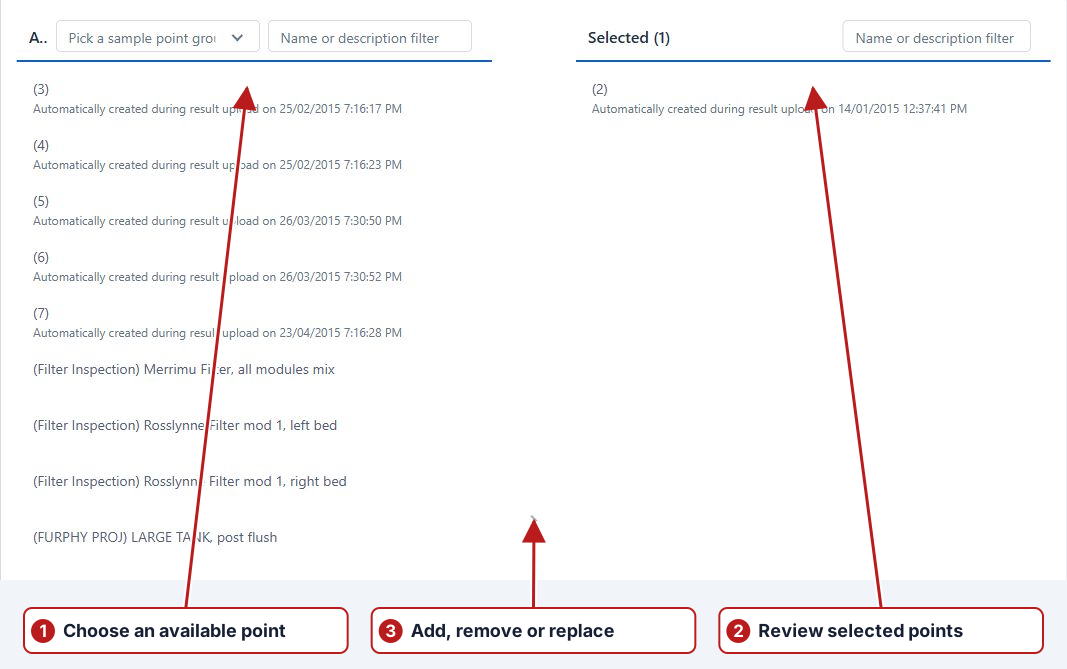
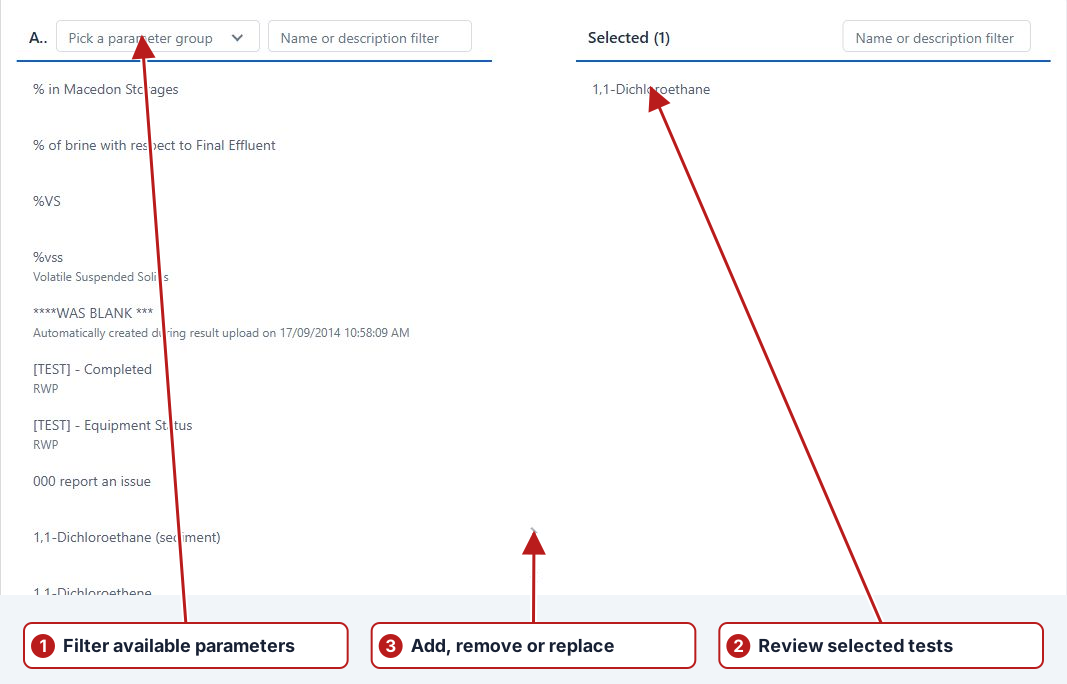
Select one or more Sample Point Groups on this tab, or select one or more Sample Points on this tab.
On the Attributes tab there are two additional fields -
- Randomised Rolling Sample Points check box
- Sync with drop down selection list of other Sample Definitions already defined for the Program
By selecting the Randomised Rolling Sample Points checkbox, when the Program Occurrences are generated, one Sample Point in the list will be randomly chosen for each Program date Occurrence until each has been used, and then the process will begin over again. The Sync with drop down selection allows you to synchronise the Sample Point Occurrences with another Sample Definition.
| Setting | Effect |
|---|---|
| Randomised rolling sample points | Allocate one eligible point per occurrence, using each before starting another cycle |
| Sync with | Use another rolling definition’s allocation for dates shared by both definitions |
Custom pane allows you to -
- Add one or more pre-defined Sample Definition Custom Attributes
Open a test series to work with these tabs:
- Attributes - where you define From and To, Duration and Frequency, as well as how Holiday and Weekend Occurrences are handled. The Custom pane holds Test series Custom Attributes.
- Applied definitions - where you select which Sample Definitions will be used to generate the Occurrences for the Series.
- Occurrences - lists each generated date Occurrence for the Series.
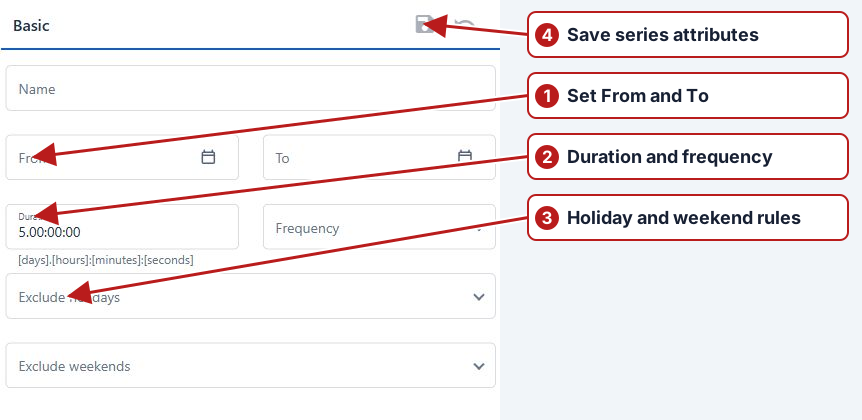
The Exclude Holidays drop down list has a number of options-
- No - when selected, registered system holidays are not excluded
- Skip occurrence - when selected if the Occurrence falls on a Holiday, the Occurrence is skipped
- Move to the previous working day - when selected if the Occurrence falls on a Holiday, it will be moved to an earlier working day
- Move to the next working day- when selected if the Occurrence falls on a Holiday, it will be moved to a later working day
- Move to the nearest working day - when selected if the Occurrence falls on a Holiday, it will be moved to the nearest (earlier or later) working day
The Exclude Weekends drop down lists also has a number of options and operates similarly -
- No - when selected, weekends are not excluded
- Skip occurrence - when selected if the Occurrence falls on a weekend, the Occurrence is skipped
- Move to the previous working day - when selected if the Occurrence falls on a weekend, it will be moved to an earlier working day
- Move to the next working day- when selected if the Occurrence falls on a weekend, it will be moved to a later working day
- Move to the nearest working day - when selected if the Occurrence falls on a weekend, it will be moved to the nearest (earlier or later) working day
Use the Custom pane on the test series Attributes page to associate pre-defined Test series Custom Attributes.
Here is an example with Holiday and Weekend option selected-
| Choice | Meaning |
|---|---|
| No | Keep occurrences on the excluded day |
| Skip occurrence | Omit that occurrence |
| Move to the previous working day | Move before the excluded day |
| Move to the next working day | Move after the excluded day |
| Move to the nearest working day | Move to the nearest permitted day |
In the following Program example there are two Sample Definitions defined. For the Program Series, both Sample Definitions have been selected on the Applied Definitions tab which means that Occurrences will be generated for the Series for both Sample Definitions (Sample Points and Parameters).
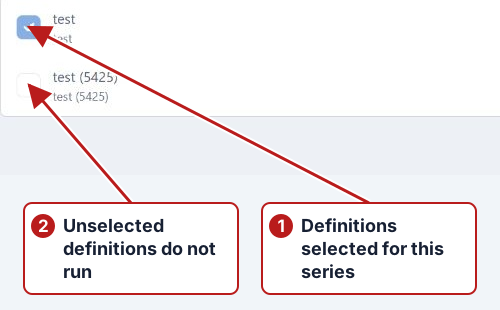
You cannot generate Occurrences for a Date Series until the Series is associated with at least one Sample Definition.
Select or clear each checkbox on Applied definitions to include or exclude that Sample Definition.
For example, select the required definitions for Balmoral and leave unrelated definitions unselected.
| Definition scope | Selection |
|---|---|
| Required Balmoral definitions | Selected |
| Other sites or unrelated definitions | Unselected |
On the Test series Attributes page, add the required pre-defined Test series Custom Attributes through the Custom pane.
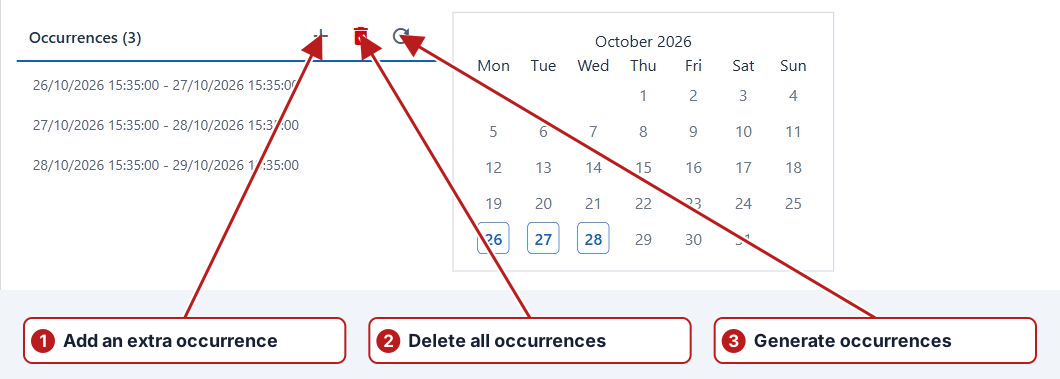
After your Schedule set up is complete, you can then generate Occurrences for each Date Series.
Open a Test series, choose Occurrences, and use Generate occurrences for periodic dates or Add extra occurrence for an exception.
Saving the Program and Generating the Tasks
Save the program and each definition or series through its own Save control. Applying definitions and generating occurrences are separate actions; closing the editor does not commit all program changes together.
No Series Date Overlap Validation
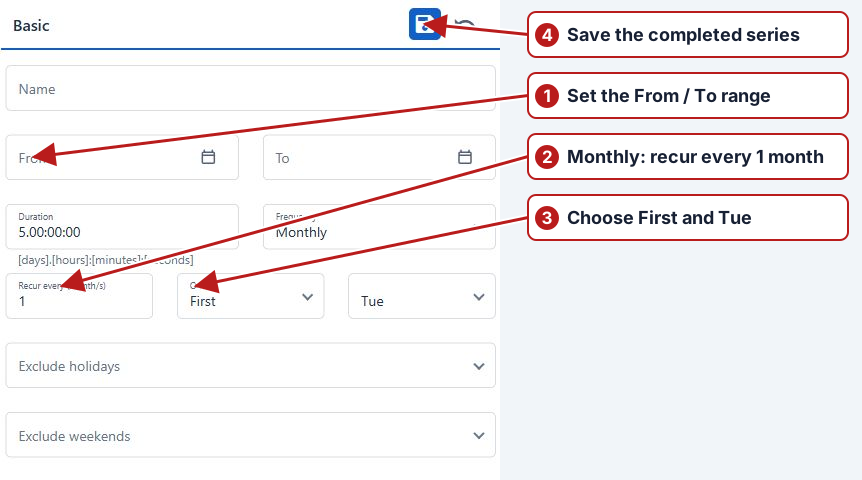
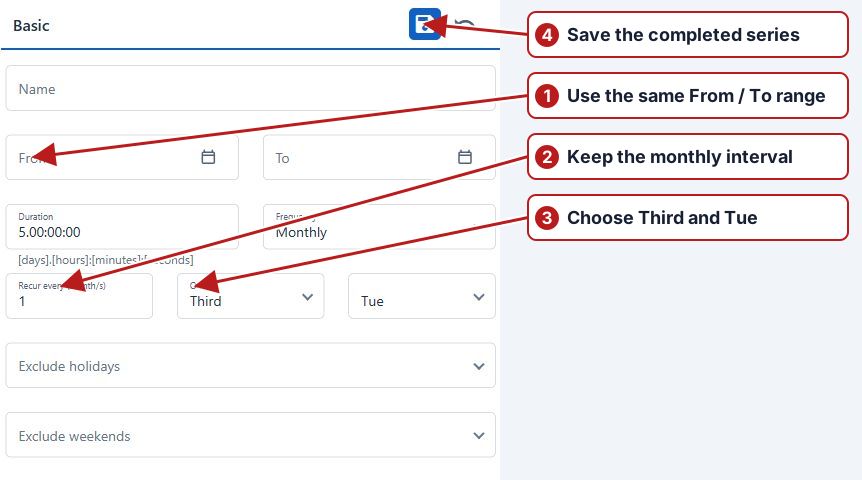
There is no validation performed by the system to check for a date overlap of Date Series. This allows you more flexibility for example in the scenario where you might want to set up Monthly sampling/testing to be performed on both the first and third Tuesday of the Month. To do this you would need to set up two Series on the Schedule.
Series 1 - Recurrence Frequency: Monthly, Recur Every 1 month on first Tuesday
Series 2 - Recurrence Frequency: Monthly, Recur Every 1 month on third Tuesday
| Series | Frequency | Period | On |
|---|---|---|---|
| 1 | Monthly | 1 month | First Tuesday |
| 2 | Monthly | 1 month | Third Tuesday |
Randomised Sample Points and Synchronisation in Action
Example 1-
This functionality is particularly helpful if you want to set up a single Program with two Sample Definitions each using Randomised Rolling Sample Points, and you want the Occurrences for both Sample Definitions to be generated for the same Sample Points. For example you may want to go to a Sample Point and either record or enter one or more Results (Enter Result task), then collect and send a sample off to the laboratory for further testing (Take Sample task). Two Sample Definitions would be required in this scenario.
Sample Definition 1 - Type Water or Wastewater Immediate, Testing Organisation Internal Lab
Sample Definition 2 - Type Water or Wastewater, Sampling Organisation Internal, Testing Organisation External Lab(ALS)
Sample Definition 1 -
| Definition | Type | Sampling | Testing | Parameters | Rolling allocation |
|---|---|---|---|---|---|
| 1 | Water or Wastewater Immediate | Not required | Internal lab | [field] pH; [field] Colour | Source definition |
| 2 | Water or Wastewater | Internal | External lab (ALS) | pH; Colour | Sync with definition 1 |
Sample Definition 2 -
In Sample Definition 2 you would select Randomised Rolling Sample Points checkbox which then enables the Sync with selection list, here you would select Sample Definition 1.
| Control | Selection |
|---|---|
| Randomised rolling sample points | Selected |
| Sync with | Sample Definition 1 |
In above example the chosen Parameters for Sample Definition 1 are - [field] pH and [field] Colour, and for Sample Definition 2 the Parameters are pH and Colour.
On the Test series screen, a date Series (for a single date) was created with a Recurrence Frequency of Daily. On the Applied Definitions tab, the Series had both Sample Definition 1 and 2 applied.
| Series | Frequency | Applied definitions |
|---|---|---|
| Shared date | Daily | Sample Definition 1 and Sample Definition 2 |
Just to demonstrate how the synchronisation works, after Occurrences were generated for the above example you can see that the Parameters for each Sample Definition have been scheduled at the same Sample Points.
| Definition | Work at the shared location |
|---|---|
| 1 | Enter [field] pH and [field] Colour results |
| 2 | Take the laboratory sample for pH and Colour |
Example 2 -
This scenario is very similar to Example 1 -
The following Sample Definitions were defined for this scenario.
Sample Definition 1 - Type Water or Wastewater Immediate, Testing Organisation Internal Lab
Sample Definition 2 - Type Water or Wastewater, Sampling Organisation Internal, Testing Organisation External Lab(ALS)
The Parameters for Sample Definition 1 are - [field] pH and [field] Colour, and for Sample Definition 2 the Parameters are pH and Colour. However in this scenario we require two date Series (for the same date period) because different Recurrence Frequencies are required.
Program Sample Definitions and Basic Attributes-
| Definition | Type | Sampling | Testing | Parameters | Rolling allocation |
|---|---|---|---|---|---|
| 1 | Water or Wastewater Immediate | Not required | Internal lab | [field] pH; [field] Colour | Source definition |
| 2 | Water or Wastewater | Internal | External lab (ALS) | pH; Colour | Sync with definition 1 |
Sample Definition 2
| Definition | Allocation |
|---|---|
| 1 | Rolling source — weekly field measurements |
| 2 | Sync with definition 1 — monthly laboratory sample |
Date Series 1 - (1/04/2015 to 1/06/2015) : Recurrence Frequency: Weekly, Thursday. Applied Definition: Sample Definition 1
Date Series 2 - (1/04/2015 to 1/06/2015) : Recurrence Frequency: Monthly, Recur Every: 1 month on second Thursday. Applied Definitions: Sample Definition 2
To visualise Date Series 1 -
| Series | From | To | Frequency | Applied definition |
|---|---|---|---|---|
| 1 | 1 April 2015 | 1 June 2015 | Weekly — Thursday | Definition 1 |
| 2 | 1 April 2015 | 1 June 2015 | Monthly — second Thursday | Definition 2 |
To visualise Date Series 2 -
| Month | Second Thursday |
|---|---|
| April 2015 | 9 April 2015 |
| May 2015 | 14 May 2015 |
This is shown on the Data Tasks screen -
| Date | Field definition | Laboratory definition |
|---|---|---|
| 9 April 2015 | Chosen rolling point | Same chosen point |
| 14 May 2015 | Chosen rolling point | Same chosen point |
Updating a Sample Definition in an Active Program
From time to time you may need to update one or more Program Sample Definitions in an active Program. If the Sample Points and/or Parameters need to be updated, the date from which the change is implemented is determined by the System Setting Days before program change applied.
For example - with the System Setting - 'Days before program change applied' set at 14 (days).
| System Setting | Change Implemented | ||
|---|---|---|---|
| Days to apply program change | Sample Points | Parameters | Containers |
| 0 | Occurrences after update date | Occurrences after update date | Occurrences after update date |
| 14 | Occurrences 14 days after update date | Occurrences 14 days after update | Occurrences after update date |
Scenario 1
You have set up a Program for Reticulation. As part of your processes, you only send off the schedule to the laboratory two months in advance. Prior to sending off the schedule to the lab for the next two months, you want to make a change to one of the Sample Definitions by replacing a Sample Point and adding Parameters.
Program Summary -
- Two Sample Definitions, the first one is Allansford - Key 1 has Randomised Rolling Sample Points selected
- The second Sample Definition is Allansford - Keys 4, 7 is synchronised with Allansford - Key 1
- Two identical Date Series have been defined
- The first Date Series - Daily, recurring every day, Applied Definitions - Allansford - Key 1
- The second Date Series - Weekly, recurring week , on the first Wednesday, Applied Definitions - Allansford - Keys 4, 7
On the Data Tasks screen some of the Tasks originally generated are shown.
| Definition | Allocation | Series |
|---|---|---|
| Allansford — Key 1 | Randomised rolling points | Daily |
| Allansford — Keys 4, 7 | Sync with Allansford — Key 1 | Weekly — Wednesday |
Before the change, the Take Sample screen for the Occurrence Due by 28/06/2015 for 22 White Street Allansford shows the Container and Parameters.
| Item | Before | After |
|---|---|---|
| Sample point | 22 White Street Allansford | 17 Mundy Street Allansford |
| Parameters | Existing parameter set | Existing set plus New Parameter 1, New Parameter 2 and New Parameter 3 |
| Containers | Existing container set | Existing set plus 100mL |
The current date is 26/06/2015.
The Sample Definition update is required to take effect after 5 days so the System Setting is updated accordingly -
| Update date | Days before program change applied | Effective boundary |
|---|---|---|
| 26 June 2015 | 5 | 1 July 2015; eligible tasks start after this boundary |
The Program Sample Definition update for Allansford - Key 1 includes -
- Replacing 22 White Street Allansford with 17 Mundy Street Allansford
- Adding Parameters New Parameter 1, New Parameter 2 and New Parameter 3
- Update Containers by adding 100mL
| Item | Before | After |
|---|---|---|
| Sample point | 22 White Street Allansford | 17 Mundy Street Allansford |
| Parameters | Existing parameter set | Existing set plus New Parameter 1, New Parameter 2 and New Parameter 3 |
| Containers | Existing container set | Existing set plus 100mL |
| Parameters added | Container added |
|---|---|
| New Parameter 1; New Parameter 2; New Parameter 3 | 100mL |
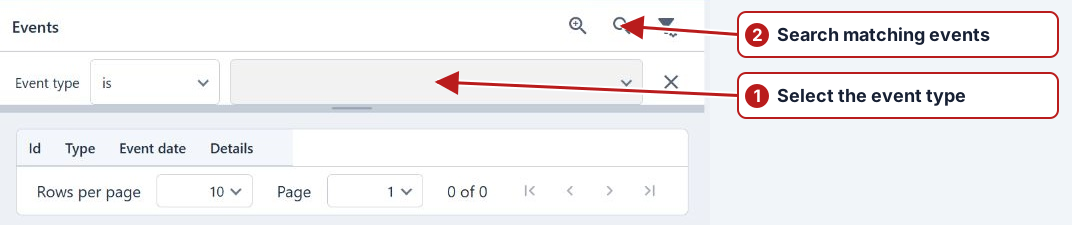
Save changed attributes through Save. Point, parameter and container associations use their own actions. Review Events and the affected future tasks after those actions.
The Data Tasks screen shows the swap of Sample Point after 5 days.
| Occurrence due by | Location and parameters | Containers |
|---|---|---|
| 28 June 2015 | Original location and parameter set | Updated container set |
| 2 July 2015 | Original location and parameter set | Updated container set |
| After 2 July 2015 | Replacement location and added parameters on eligible unsubmitted tasks | Updated container set |
Displaying the Take Sample screen again for the Occurrence Due by 28/06/2015 (from 27/06/2015 to 28/06/2015) for 22 White Street Allansford shows that the Parameters have not been updated, but the Containers have been updated.
| Location | Parameters | Containers |
|---|---|---|
| 22 White Street Allansford | Original set | Updated set including 100mL |
Displaying the Take Sample screen for the Occurrence Due by 2/07/2015 for 26 Tooram Rd Allansford also shows only the Containers update.
| Location | Parameters | Containers |
|---|---|---|
| 26 Tooram Rd Allansford | Original set | Updated set including 100mL |
Displaying the Take Sample screen for Occurrence Due dates after 2/07/2015 shows the Sample Point and Parameters update (Containers had been updated the day immediately after the Program update date.)
| Point replacement | Parameters | Containers |
|---|---|---|
| 22 White Street → 17 Mundy Street Allansford | Includes New Parameter 1, 2 and 3 | Includes 100mL |
Scenario 2
You have set up a Program for Reticulation which is internally sampled and tested. You want to make a change to one of the Sample Definitions by replacing a Sample Point, adding Parameters and Containers that will take effect immediately.
This example will use the same Program as used in Scenario 1.
| Update date | Days before program change applied | Eligible start |
|---|---|---|
| 26 June 2015 | 0 | After the update timestamp; review the next future occurrence |
Displaying the Take Sample screen for Occurrence Due By date of 28/06/2015 (from 27/06/2015 to 28/06/2015) for 22 White St Allansford -
| Sample point | Parameters and containers |
|---|---|
| 22 White Street Allansford | Original sets |
The System Setting for Days before program change applied is set to 0 (zero) days.
The Program Sample Definition update for Allansford - Key 1 includes -
- Replacing 22 White Street Allansford with 17 Mundy Street Allansford
- Adding Parameters New Parameter 1, New Parameter 2 and New Parameter 3
- Update Containers by adding 100mL
The current date is 26/06/2015 which means that Occurrences with a Due By date from 28/6/2015 (from 27/06/2015 to 28/06/2015) will be updated.
| Item | Before | After |
|---|---|---|
| Sample point | 22 White Street Allansford | 17 Mundy Street Allansford |
| Parameters | Existing parameter set | Existing set plus New Parameter 1, New Parameter 2 and New Parameter 3 |
| Containers | Existing container set | Existing set plus 100mL |
Displaying the Take Sample screen for the Occurrence Due By date of 28/06/2015 for 17 Mundy St Allansford after the update shows the Sample Point, Parameters and Container have been updated -
| Sample point | Parameters | Containers |
|---|---|---|
| 17 Mundy Street Allansford | Original set plus New Parameter 1, 2 and 3 | Original set plus 100mL |
Program Cloning
You may have an existing Program that you want to use as the base Program to create a new Program. Programs can be cloned by using the Program browser to search for the Program you want to clone. Then click on the Clone button Clone.
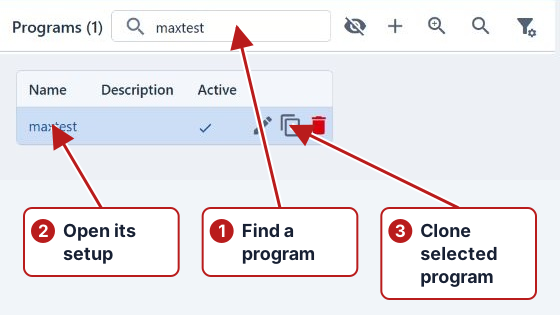
The cloned Program will have -
- Enter a unique name for the cloned Program (the suggested name uses “copy”)
- Attributes as well as Program Custom Attributes
- Sample Definitions as well as Sample Definition Custom Attributes
- All Date Series with their associated Applied Definitions, as well as Test series Custom Attributes
However you SHOULD update the Program name and generate Occurrences.
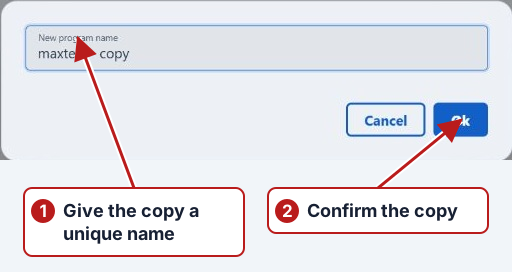
Scheduling Sampling/Testing for the next Financial Year
For a particular Financial/Calendar Year you might set up several Programs to schedule your sampling and Testing. There may be little or no change to a Program other than the sampling and testing dates from one Financial/Calendar Year to the next. Program Cloning allows you to 'copy' an existing Program, make any required changes and then generate Occurrences for the next Financial/Calendar Year.
See also - How to Set Up Programs, Container Type, Sample Type, Sampling Methods, Organisations, Holidays, Custom Attributes
Scheduler
Set From and To, tick sample points and inspect their timelines. In Parameters, tick checkboxes to display events for those measurements across all selected sample points. Leaving every parameter unchecked displays all events. The filter header provides Selected first, remembered in this browser, and Clear filter. The Parameters panel also supports manual scheduling by drag and drop. See Using Scheduler for filtering, checked-parameter scheduling, manual-test creation, editing restrictions, movement, multiple event selection and deletion.
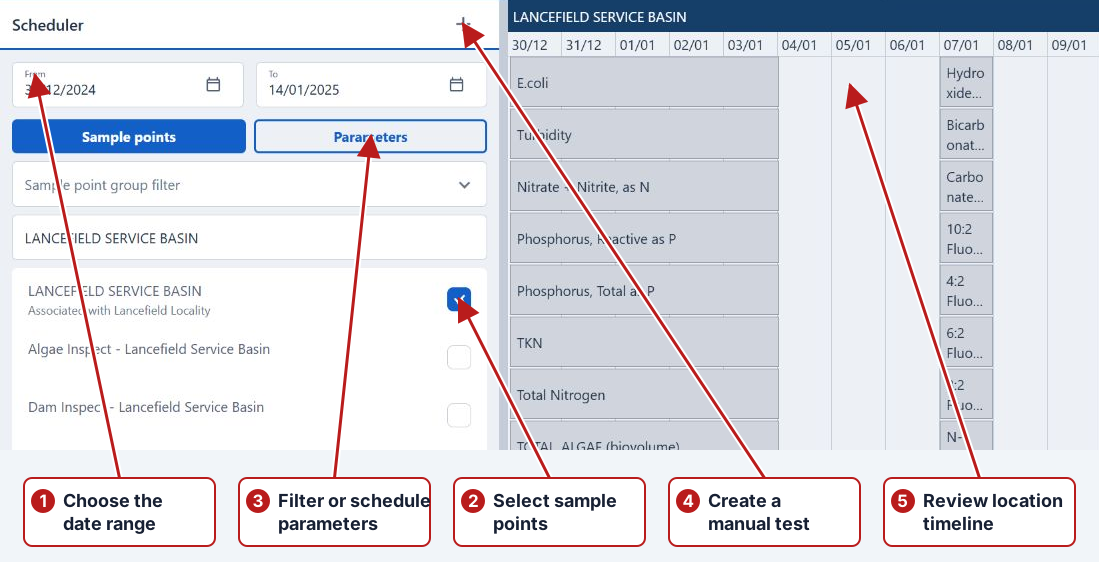
Calendar controls and dates
The test-series Occurrences calendar highlights dates with occurrence starts. Select a marked date or an occurrence in the adjacent list to review its full period. The list’s From/To times determine the work window. The current calendar reflects the series range; the Windows month/year navigation buttons are not the controls used by this view.
See Date series, Exceptions and Date and multi-day task examples.