
Manage holidays
Open Manage > Holidays to maintain dates used by program scheduling. Each holiday is an explicit calendar date with a description.
Add a holiday
- Check the existing dates to avoid duplicates.
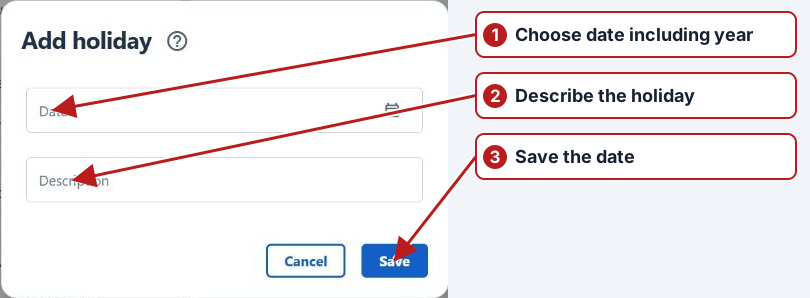
- Click Add new.
- Choose the Date and enter a Description that identifies the holiday.
- Review the year as well as the day and month, then click Save.
Edit or delete a date
Select a row and use Edit, or double-click it. Change the date or description and Save; Cancel discards the editor. To remove an entry, select it, use Delete and review the confirmation.
How a test series uses holidays
The test series’ Exclude holidays choice determines how a date is treated. The holiday catalogue supplies the dates; it does not select the scheduling rule for every program.
| Series choice | Treatment |
|---|---|
| No | Keep the holiday occurrence. |
| Skip occurrence | Omit an occurrence falling on the holiday. |
| Move to the previous working day | Move it to an earlier working day. |
| Move to the next working day | Move it to a later working day. |
| Move to the nearest working day | Move it to the nearest eligible working day. |
Review Exclude weekends alongside the holiday choice. After calendar or series changes, inspect the affected Occurrences and Tasks to confirm the intended dates. For the original worked examples and occurrence controls, see Program scheduling and testing and Program date series.