
Result history
Result history records changes to a task’s result. Use it to investigate a correction, compare original and updated readings, identify who made a change and read the recorded explanation.
Open the history
- Open Data > Tasks, filter to the required result and Search.
- Select the row and choose More > Show history, or use the row’s context menu.
- Review the history entries, then click Close when finished.
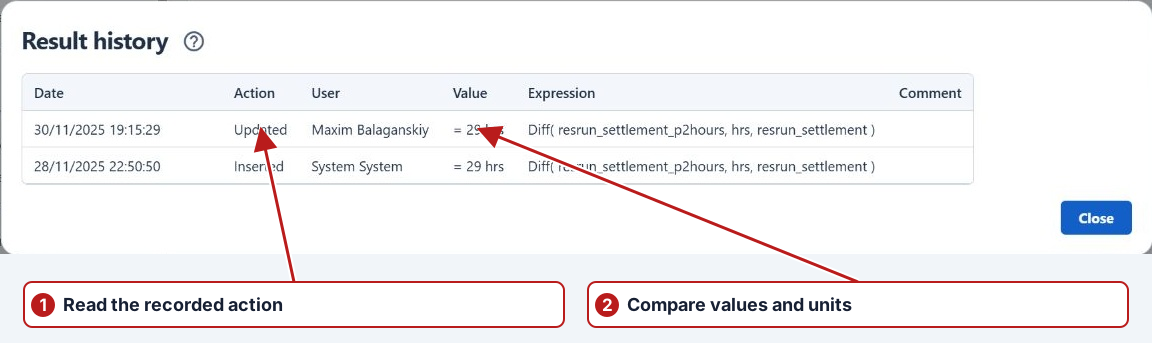
| Column | Interpretation |
|---|---|
| Date | The timestamp of the history entry. Distinguish it from the measurement date shown in Tasks. |
| Action | The recorded submission, update, deletion or other result action. |
| User | The user associated with that action. |
| Value | The input value, qualifier and unit. Deleted and No result entries are identified explicitly. |
| Expression | The expression recorded with a calculated result, where applicable. |
| Comment | The reason or explanation stored with the change. |
Equivalent correction example
| Action | Value | Comment |
|---|---|---|
| Submitted | 7.8 units | Field reading |
| Updated | 7.2 units | Corrected transcription against instrument log |
This illustrative sequence explains a changed pH reading. Compare the actual user, timestamps and comment in your result’s history; the latest displayed result alone cannot explain the original value.
Continue an investigation
Check applicable units and qualifiers when comparing values. If a calculated result depends on a corrected source, inspect its Calculation details. Use Browse events for related event records and the issue’s History tab for changes to the investigation itself.
See Enter results for updates, required comments and deletion.