
Program best practice
Make programs easy to find and review. A bounded period and a clear operational purpose help prevent accidental generation of large or confusing schedules.
Choose a manageable scope
Organise a program by a useful site, activity and planning period. Review how the number of occurrences, locations and parameters multiplies into tasks. A year-long daily plan with many locations and tests can create much more work than its program count suggests.
Create a financial-year lookup
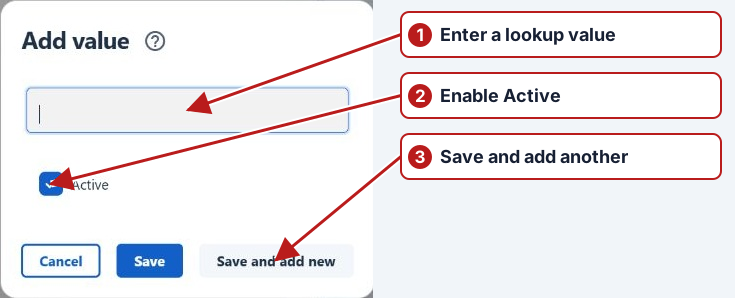
Create a lookup type and values such as 2026–27 and 2027–28. Use consistent labels so filtering does not split records between alternate spellings.
Create and assign the program attribute
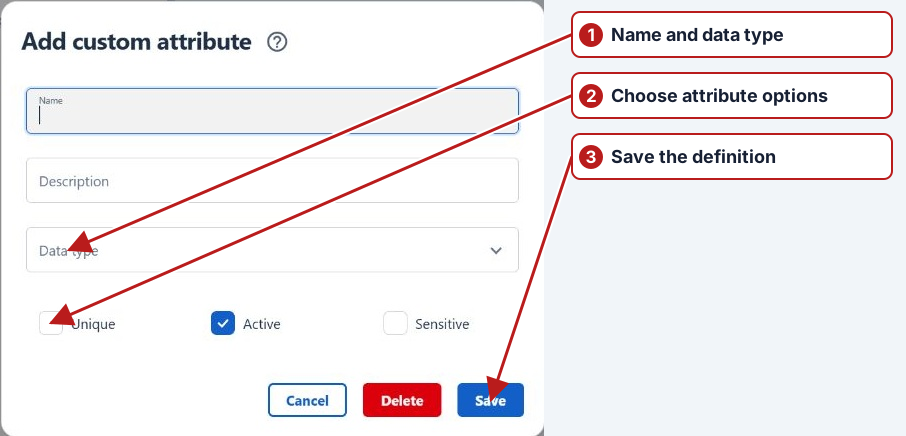
Define a Program custom attribute using the lookup type, then open each program’s Custom panel and select its financial year. Save the value on the program; defining the attribute alone does not classify it.
Use the classification in searches
Add the financial-year custom-attribute filter to the Programs or task browser where supported, choose its value and Search. Save a reusable search through Manage. Include inactive records when finding last year’s template.
Clone with a review checklist
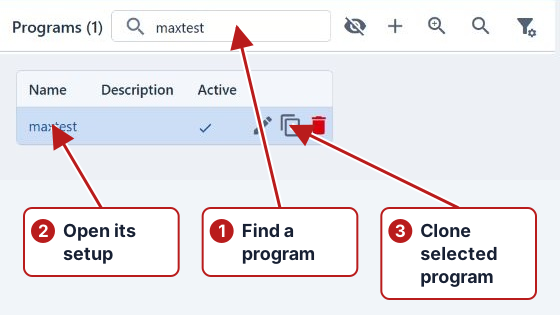
Give the clone a unique name, assign the new-year attribute, then review dates, definitions, organisations, rolling selection and holidays. Inspect its occurrences and tasks before use. Keep the old plan and submitted results available for history.