
In-app notifications
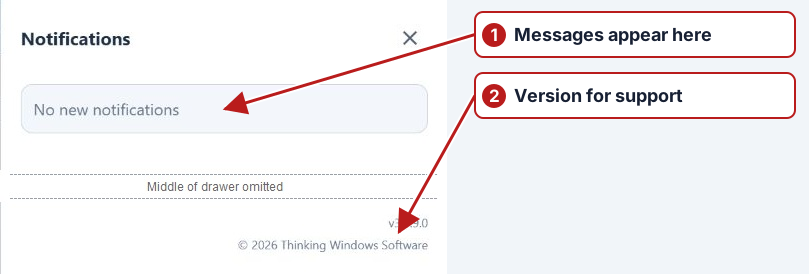
Click the Notifications bell in the top bar to open the drawer. It contains processing messages, progress and completed-output links. These messages complement the separate email notification rules.
Track an operation
- Submit the intended operation, such as an export, report run or calculation.
- Open Notifications and find the message for that request.
- Review the message, description, date and progress indicator where shown.
- When processing completes, open or download the output where those links are provided. Refresh the originating browser to review changes to records.
| Message or control | Meaning |
|---|---|
| Information | Processing or completion information. Review its text to determine the outcome. |
| Warning | An outcome that needs attention, such as a cancelled operation. |
| Error | The operation failed. Read the description before retrying. |
| Progress and Cancel | An operation is in progress. Cancel is offered when its job can be targeted from the notification. |
| Open / Download | A completed export or report has an output link. |
| Dismiss / Dismiss all | Removes messages from the notification list. |
If a request does not finish
Check the message description, then the corresponding Background jobs state. For reports, also check Data > Reports; for laboratory files, check Data > Imports. Record the application version from the drawer footer when reporting a problem.
An empty drawer means there are no messages currently listed for you. It is not evidence that every background service is idle. Avoid submitting the same operation repeatedly while its earlier request is still running.