
Add an organisation
Organisations identify who performs testing and provide the configuration used to match imported results.
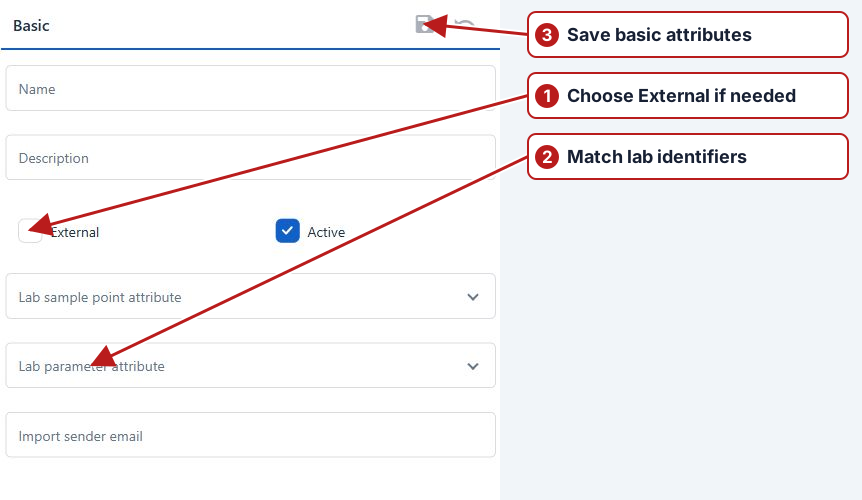
- Open Samples > Organisations and click Add new.
- On Attributes, enter Name and optional Description.
- Set External and Active as appropriate.
- For lab imports, choose Lab sample point attribute and Lab parameter attribute and configure Import sender email if required.
- Click Save in the Basic toolbar.
See Define organisation import fields before importing a file.
Use the saved organisation
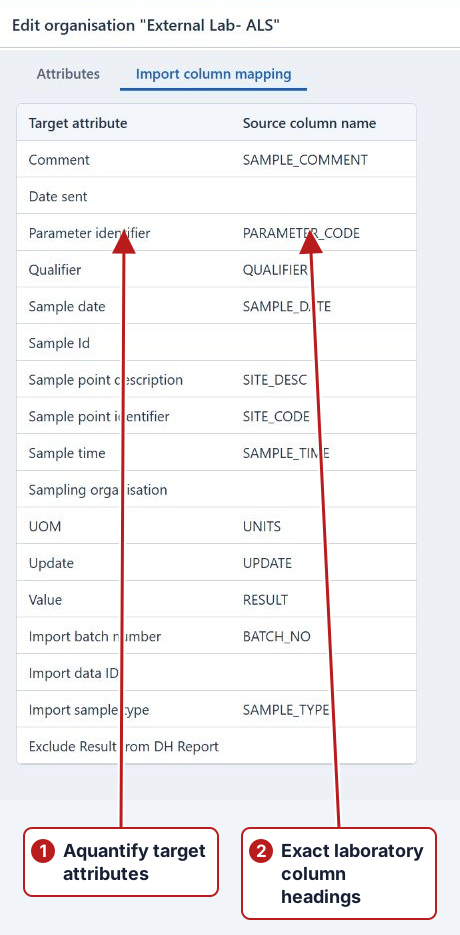
Assign it as the sampling or testing organisation in the relevant program definitions. For laboratory files, select the identifier attributes and configure Import column mapping. Different supplying organisations can use different codes and source headings.
See Full import setup.