
Email notification
Notifications connect selected Events to a group of recipients. A rule defines the activity and timing; a group supplies the users who should receive it. Set up both and review the recorded events when diagnosing missing or unexpected mail.
Choose the event and purpose
Common purposes include a new issue after a limit breach, a successful laboratory import, an import failure or a relevant definition change. Choose the specific event type and the available entity scope. A rule for successful imports will not explain a failure, and a broad change rule can produce more mail than a narrowly scoped rule.
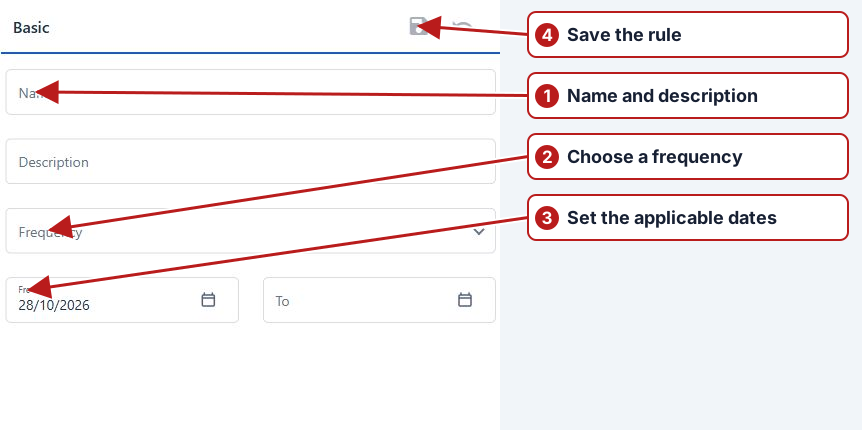
Rule frequency and period
Review the rule’s From/To and frequency options before saving. Match the frequency to the intended response: immediate operational attention and periodic review have different needs. Use the current field labels rather than the Windows frequency dialog.
Group membership and rules
- Create or open the notification group.
- Add the users who should receive the selected activity.
- Associate the relevant rules.
- Review Active state and each user’s account details.
- Review a matching recorded event and the notification outcome.
A group needs actual users as well as rules; a definition with no recipients cannot deliver the intended notification. Associations in related tabs can be applied immediately, so review them as you make changes.
Limit breach to issue to notification
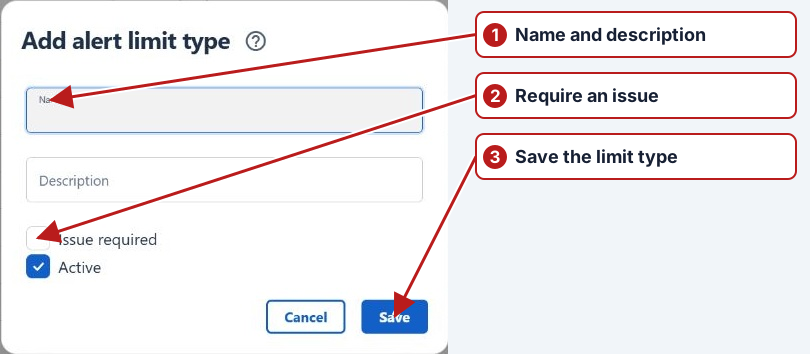
A parameter limit’s alert type controls whether an issue is optional or mandatory. When a breach produces an issue, the issue-created event can be used by a notification rule. This chain requires an applicable limit, correctly configured alert type, the appropriate rule and a recipient group.
Issue handling also creates mail for the assigned and creating users through the configured issue delivery process. Notification rules and groups are used for additional event-based recipients; they are not required merely to define those built-in issue recipients.
Overdue result notifications
Result overdue records that a monitored scheduled result remained unsubmitted after its scheduled end. Active, scoped rules enable detection; the existing notification frequency and recipient groups handle delivery. The event remains a record of the missed deadline even if the result is submitted later. See Notify on overdue results for the full setup and troubleshooting guide.
Automatic import notifications
The recognised sender and monitored import process belong to import setup. Notification rules report the resulting import events; they do not themselves receive or process laboratory attachments. Configure success and failure notifications according to the intended recipients.
Investigate notification emails
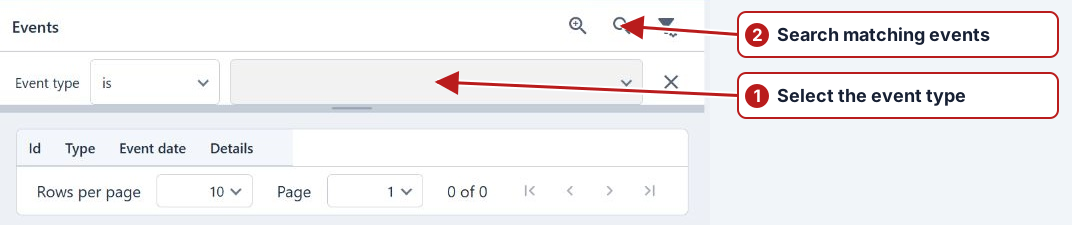
- Find the underlying event around the expected activity time.
- Read its details and confirm it matches the rule’s type and scope.
- Check rule timing, Active state and group association.
- Check group membership and recipient account details.
- If the event and setup are correct, ask the administrator to check delivery configuration and processing.
See Define a rule and Define a group.