
Widget SQL parameters and selector bindings
Map and Table run SQL with values supplied by dashboard context. Date range and Custom attribute widgets publish that context. Adding a selector alone does not filter a query.
Binding syntax
fromDate=dateRange.min
toDate=dateRange.max
classes=siteClasses
Enter one binding per line in the receiving widget’s Parameter bindings field. The left side is the SQL parameter name (use @fromDate in SQL and fromDate in the binding). The right side is the selector’s context name, optionally followed by a property path. It is not SQL, a literal value or an expression. Context paths are case-sensitive. Bind every SQL parameter; use a distinct parameter name once per widget.
Blank lines and entries missing either a name or context path are ignored when saving. An unknown context path supplies a missing value; define the selector and decide how your SQL should handle NULL. Changes to bound context trigger a query refresh, alongside regular polling.
Date ranges
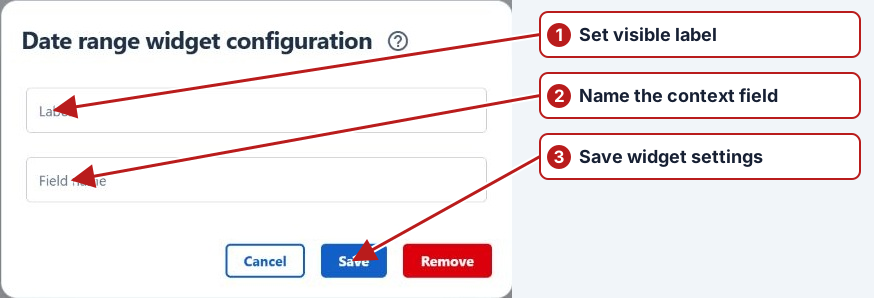
- Add a Date range widget, set its Label and Field name to
dateRange, then save. - Add the two date bindings above to Map or Table.
- Use both matching SQL parameters in the query.
Dates are sent as ISO strings. Convert them to the SQL date type appropriate for your data. This standalone Table example demonstrates inclusive timestamp bounds and needs the two date bindings:
SELECT d.observedAt AS [Observed at], d.reading AS [Reading]
FROM (VALUES
    (CAST('2026-10-01T00:00:00+00:00' AS datetimeoffset), 12.5),
    (CAST('2026-10-15T00:00:00+00:00' AS datetimeoffset), 13.0)
) AS d(observedAt, reading)
WHERE d.observedAt >= CONVERT(datetimeoffset, @fromDate)
  AND d.observedAt <= CONVERT(datetimeoffset, @toDate)
ORDER BY d.observedAt;
Choose a range containing these example dates to see rows. For production queries, match the stored data’s timezone and precision. The selector supplies an end timestamp, which can be the end of a day or period; do not assume it is the next day’s midnight. Binding fromDate=dateRange sends the whole range object as JSON, not a single date.
Custom-attribute lists
Configure a Custom attribute widget with context name siteClasses, then bind classes=siteClasses. Lookup attributes supply selected lookup IDs; non-lookup attributes supply comma-separated entries as a list of strings. Lists reach SQL as JSON arrays, not expanded SQL parameters. Use OPENJSON, rather than IN (@classes).
This standalone Table example returns selected values and needs only the classes binding:
SELECT selected.[value] AS [Selected value]
FROM OPENJSON(@classes) AS selected;
For a query over your reporting data, use a predicate such as the following, where d.ClassValue represents your actual text column:
WHERE (
    NOT EXISTS (SELECT 1 FROM OPENJSON(@classes))
    OR d.ClassValue IN (SELECT [value] FROM OPENJSON(@classes))
)
This example deliberately treats an empty or NULL list as “all classes”. Remove that first condition if an empty selection should return no rows. For lookup IDs, compare against the matching ID column and convert JSON strings to the column’s type where needed. Review empty text entries from non-lookup input.
SQL rules and permissions
- Use a single SQL Server SELECT statement, up to 10,240 characters. A CTE ending in one SELECT is allowed.
- Do not use data-changing statements, SELECT INTO, multiple batches, cross-database references, Settings, OPENROWSET or OPENQUERY.
- Saving SQL requires the Setup reports permission; running the widget query requires Search results. Saving the widget approves its exact SQL for later execution.
- If a query approval error appears, have an authorised user reopen the widget and save its SQL, then save the dashboard.
Have a reporting administrator prepare production queries using the correct tables, joins, site and organisation scope. A SELECT query must explicitly apply the intended data filters; a dashboard selector does not add WHERE clauses for you.
Troubleshooting
| Symptom | Check |
|---|---|
| Undefined SQL parameter | Each @parameter needs a binding with a matching left-hand name. |
| NULL or unchanged filter | Check the selector’s saved context name, spelling and min/max path. Check that SQL actually uses the parameter. |
| Conversion error | Check date strings versus range objects, list JSON versus scalar values, and lookup IDs versus names. |
| No matching rows | Check date bounds, timezone, empty-selection rules and joins. Try the simple example before adding production filters. |
Return to Dashboard widgets.