
Parameter Expressions
When you define a Parameter Method you can also define a Parameter Expression. An Expression is like a formula which is used to perform a calculation automatically. There are many functions in Aquantify that will assist you in setting up Expressions.
The Expression screen is accessed from a Parameter’s Test methods tab. Open the required method and choose Expression.
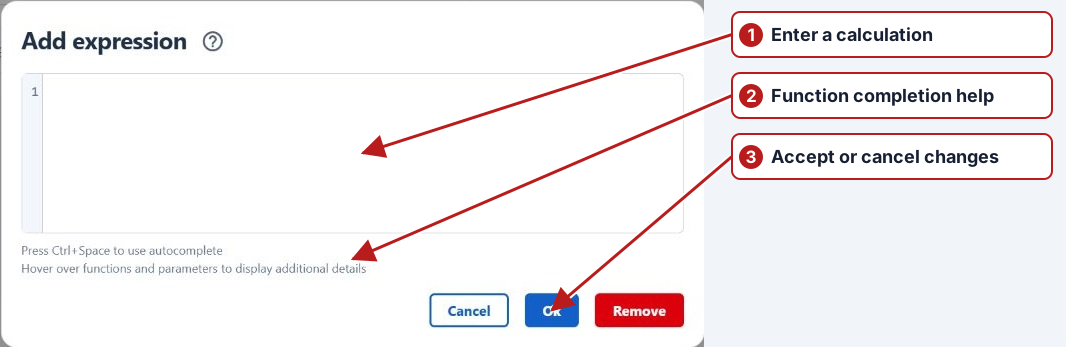
The Expression screen has an expression building area, Ctrl+Space autocomplete for functions and references, and hover help for additional details.
| Expression | Selection / purpose |
|---|---|
Latest(Param_1, g, SPoint_1) + 100
|
Use autocomplete and hover help in the current editor; the old separate function/reference selection tabs have been replaced. |
References, Functions and Operators
References
Aquantify allows you to define a Reference for a Parameter and a Sample Point. A Parameter and Sample Point Reference can then be combined with one or more Functions and Operators in an Expression. Using a Sample Point Reference in an Expression allows you to 'reference' a Result at a particular Sample Point. The Sample Point Reference is optional in an Expression. If there is no Sample Point reference used in an Expression, it is assumed that the referenced Parameter Result will be from the same Sample Point as the Parameter with the Expression. Some functions also allow you to include a list of Sample Point References (as separate arguments).
An Expression example -
| Expression | Selection / purpose |
|---|---|
Latest(Param_1, g, SPoint_1)
|
Read Param_1 at SPoint_1 rather than the calculated task’s own location. |
Functions
There are several custom and system Functions available in Aquantify which can be used in a Parameter Expression to automatically calculate a Parameter Result.
Custom functions generally have three parameters (or components) - but not always eg. DiffDays only has a Parameter Reference and a Sample Point Reference
Function(ParameterReference, UOM, SamplePointReference)
These are - Parameter Reference, UOM (Units of Measurement) and Sample Point Reference which is optional. If the latter is omitted, the Expression will retrieve the Parameter Result used in the Expression from the same Sample Point. When included, there can be one Sample Point Reference or more than one Sample Point Reference. In the current editor, pass multiple references as separate comma-separated arguments, without square brackets.
For example - Function(ParameterReference, UOM, SamplePointReference1, SamplePointReference2, SamplePointReference3)
For example, here are the three versions of the Latest custom function -
Latest(ParameterReference, UOM ) which does not have a Sample Point Reference
Latest(ParameterReference, UOM, SamplePointReference) which has a single Sample Point Reference
Latest(ParameterReference, UOM, SamplePointReference1, SamplePointReference2, SamplePointReference3) which has three Sample Point References
Custom functions which support multiple Sample Point References -
- Latest(ParameterReference, UOM, SamplePointReference )
Latest returns a Result from source tasks whose periods overlap the calculated task's range. It waits when the newest overlapping task (ordered by its start, then end) is pending. Once that task is submitted with a value, it selects the submitted overlapping Result with the latest Result date. Use LatestAvailable to skip pending tasks and No result entries.
LatestAvailable(ParameterReference, UOM, SamplePointReference)
LatestAvailable returns the submitted Result with the latest Result date from source tasks whose periods overlap the calculated task's range. It skips pending tasks and submitted No result entries, using an earlier submitted value when available. If no submitted value exists in the overlapping range, the calculation remains pending.
Omit the Sample Point Reference to use the calculated task's Sample Point, or pass one or more Sample Point References as separate comma-separated arguments, without square brackets. The UOM argument converts numeric values to the requested unit; leave it empty for unitless, text or lookup Results. Text and lookup values are also supported.
Examples: LatestAvailable(Chlorine, mg/L) uses the same Sample Point; LatestAvailable(Chlorine, mg/L, Inlet) uses Inlet; LatestAvailable(Chlorine, mg/L, Inlet, Outlet) chooses the latest submitted value across both points.
For example, if an overlapping task has a submitted value of 0.8 mg/L and a newer overlapping task is pending or has No result, LatestAvailable(Chlorine, mg/L) returns 0.8 mg/L. It does not search outside the overlapping task range. Selection uses the Result date; overlap uses the source task's period.
- Avg(ParameterReference, UOM, SamplePointReference)
This function is used to calculate the Average Result for a Parameter at the same Sample Point, a specific Sample Point, or from a number of Sample Points.
- RollingAvg(ParameterReference, UOM, SamplePointReference)
This function is used to calculate the Rolling Average Result for a Parameter at the same Sample Point, a specific Sample Point, or from a number of Sample Points.
- Median(ParameterReference, UOM, SamplePointReference)
This function returns the Median Result for a Parameter at the same Sample Point, a specific Sample Point, or from a number of Sample Points.
-
RollingMedian(ParameterReference, UOM, SamplePointReference)
This function returns the Rolling Median Result for a Parameter at the same Sample Point, a specific Sample Point, or from a number of Sample Points.
The following custom functions DO NOT support multiple Sample Point References -
- Diff(ParameterReference, UOM, SamplePointReference)
This function is used to calculate the Difference in value since the previous Parameter Results at the same Sample Point or a specific Sample Point
- DiffDays(ParameterReference, SamplePointReference) - This function is used to calculate the number of days between the latest Result and the previous Result
- Total(ParameterReference, UOM, SamplePointReference)
This function is used to calculate the Total change in value over time for a Parameter since the first Result at the same Sample Point or a specific Sample Point.
Operators
The most commonly used Operators are available in Aquantify.
These include -
- Add (+)
- Subtract (-)
- Multiply (*)
- Divide (/)
Expressions
An Expression is defined for a Parameter Method. The Expression field allows you to combine Functions, UOM, Parameter References, Sample Point References, Operators and numbers. The end result being that the Parameter Result will be automatically calculated using the defined Method Expression.
Building Up an Expression
Scenario - For Parameter_Two we want to set up an Expression that will get the latest Result for Parameter_One at SPoint_One and then add 100. Parameter_Two is tested at SPoint_Two . Both Parameters have been defined with an integer data type and a Default Method with a UOM of g. To do this we use a Reference for both Parameter_One and SPoint_One in the Calculation Expression.
The set up -
| Parameter |
Parameter Reference |
Sample Point |
Sample Point Reference |
Expression |
|---|---|---|---|---|
| Parameter_One | Param_1 | SPoint_One | SPoint_1 | |
| Parameter_Two | Param_2 |
SPoint_Two |
SPoint_2 | Latest( Param_1 , g, SPoint_1 ) + 100 |
On the Parameter’s Test methods tab, add or open the required Method, then open Expression. Type Latest or use Ctrl+Space autocomplete to select the function. Enter its arguments between the parentheses.
| Expression | Selection / purpose |
|---|---|
Latest()
|
Latest retrieves the latest applicable source Result. |
Enter the Parameter Reference Param_1 as the first argument, using autocomplete to find the defined reference.
| Expression | Selection / purpose |
|---|---|
Latest(Param_1)
|
Param_1 identifies Parameter_One. |
Enter the Unit of Measurement g as the second argument. It must be a defined, compatible unit.
| Expression | Selection / purpose |
|---|---|
Latest(Param_1, g)
|
Separate the Reference and unit with a comma. |
To add a Sample Point Reference, enter a comma and then SPoint_1, using autocomplete for the defined reference.
| Expression | Selection / purpose |
|---|---|
Latest(Param_1, g, SPoint_1)
|
Separate the unit and location with a comma. |
Then place the cursor outside of the function brackets and enter the Add operator + followed by 100.
| Expression | Selection / purpose |
|---|---|
Latest(Param_1, g, SPoint_1) + 100
|
The + 100 belongs outside Latest’s parentheses. |
To visualise the scheduled Parameters on the calendar -
| Tasks | Scheduling relationship |
|---|---|
| Parameter_One at SPoint_One | Schedule the required source measurements |
| Parameter_Two at SPoint_Two | Its period must cover the applicable source task periods |
On the Data Tasks screen -
| Parameter | Point | Result |
|---|---|---|
| Parameter_One | SPoint_One | 250 g |
| Parameter_Two | SPoint_Two | Latest(Param_1, g, SPoint_1) + 100 = 350 g |
Using the Avg Function in an Expression
You can define a Parameter that has an Expression which uses the Avg function to automatically calculate the average Result for another Parameter.
Scenario - Suppose we want to automatically calculate the average Result for Parameter A which has been tested over 5 days. Both Parameters have been defined with a decimal data type and a Default Method with a UOM of kg. To do this we need to define Parameter D which will use the Avg function in it's Expression.
The set up -
| Parameter | Reference | Expression |
|---|---|---|
| Parameter A | Parameter_A | |
| Parameter D | Avg(Parameter_A, kg) |
| Expression | Selection / purpose |
|---|---|
Avg(Parameter_A, kg)
|
Its default Method uses kg; no Sample Point Reference is needed at the same point. |
To visualise the set up on the Schedule calendar -
| Tasks | Scheduling relationship |
|---|---|
| Parameter A: five daily tasks | Schedule the required source measurements |
| Parameter D: one task covering all five days | Its period must cover the applicable source task periods |
On the Data>Tasks screen you will notice that Parameter D has a calculated-expression indication (calculated)which indicates that this Parameter has an Expression and that this Result will be automatically calculated.
| Parameter A | Parameter D |
|---|---|
| Some applicable tasks still Pending | Avg remains Pending |
When all the Results for Parameter A have been entered, the Result for Parameter D is automatically calculated. However you might find it more appropriate to use the Rolling Average function instead of the Average function so that you will be able to see the average for the Results entered so far rather than waiting until all Results have been entered. This function will be covered later in this section.
| Values (kg) | Average (kg) |
|---|---|
| 4, 5, 7, 8, 10 | 34 / 5 = 6.8 |
Using the Diff and Total Functions in Expressions
Scenario - Suppose we have a meter that we want to read every day and we want to know the volume that passes through the meter from one day to the next. Over time we also want to know the total volume that has passed through the meter.
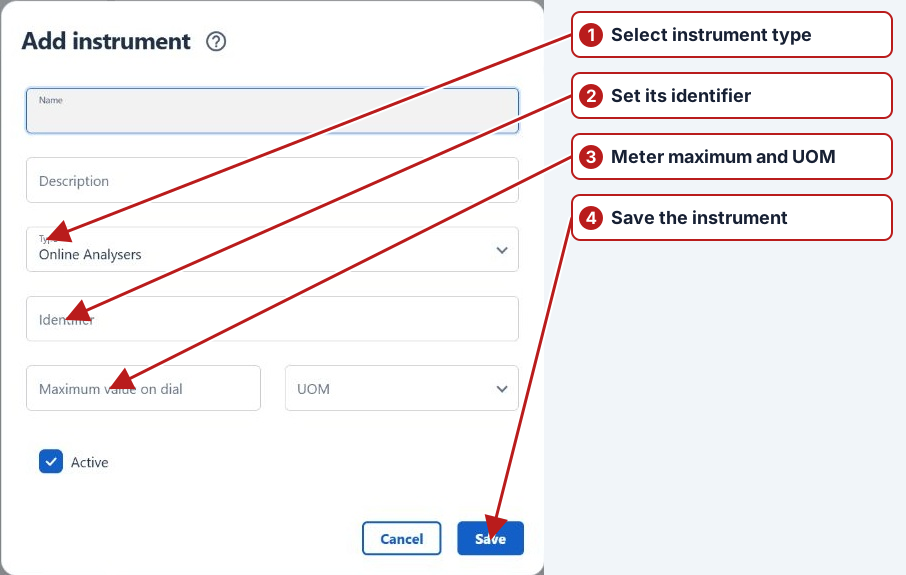
To do this we can define a Parameter called ABC Meter Read with an associated Reference and a default Method with UOM of ML which will record the meter readings. We can also define another Parameter called ABC Meter Read Diff with a default Method with a UOM of ML and which also has an Expression that automatically calculates the difference between the current and previous reading in ML. The last Parameter needed is ABC Meter Vol Total with a default Method with a UOM of ML and also with an Expression which automatically calculates the total volume that has passed through the meter in ML.
The set up for this would be as follows -
| Parameter | Reference | Expression |
|---|---|---|
| ABC Meter Read | ABC_Read | |
| ABC Meter Read Diff | Diff(ABC_Read, ML) | |
| ABC Meter Vol Total | Total(ABC_Read, ML) |
To visualise the set up on the Schedule calendar -
| Tasks | Scheduling relationship |
|---|---|
| ABC Meter Read: daily readings | Schedule the required source measurements |
| ABC Meter Read Diff and ABC Meter Vol Total: matching calculation periods | Its period must cover the applicable source task periods |
After each Meter reading is entered, the Parameters with Expressions for volume difference and total volume are automatically calculated.
| Reading | Difference | Total since first reading |
|---|---|---|
| 680 | 0 | 0 |
| 999 | 319 | 319 |
| 220 — after rollover | 220 | 539 |
A More Complicated Example
To demonstrate a more complex example, the Ammonia Dose Rate will be automatically calculated using the Ammonia Flow Rate, the Raw Flow Rate and the Bore Flow Rate in a complex formula.
The set up for this would be as follows -
| Parameter | Reference | Expression |
|---|---|---|
| Ammonia Flow Rate | AmmoniaFlowRate | |
| Raw Flow Rate | RawFlowRate | |
| Bore Flow Rate | BoreFlowRate | |
| Ammonia Dose Rate |
(Latest(AmmoniaFlowRate, L/h) * 0.25 * 0.9) / (( (Latest(RawFlowRate, L/s) + Latest(BoreFlowRate, L/s)) * 3600 ) / 1000000) |
Using the Median Function
The Median is the middle value of a list of ordered numbers.
For the following list of numbers - 8, 5, 4, 10, 7
- Firstly the numbers are put in order - 4, 5, 7, 8, 10
- Then the median is determined which in this example is 7
For the following list of numbers - 8, 5, 4, 10, 7, 11
- Firstly the numbers are put in order - 4, 5, 7, 8, 10,11
- Then the median is determined which in this example is (7+8)/2 = 7.5
Setting up a Parameter (Param_Med_Four) to use the Median function -
| Expression | Selection / purpose |
|---|---|
Median(Param_Four, kg)
|
Use the applicable period and the same Sample Point, or include a location Reference explicitly. |
To visualise the set up on the Schedule calendar -
| Tasks | Scheduling relationship |
|---|---|
| Param_Four: source tasks | Schedule the required source measurements |
| Param_Med_Four: one period spanning the required source values | Its period must cover the applicable source task periods |
The Median is calculated when ALL dependent Results have been entered. That is, there can be no Pending results.
Using Rolling Median and Rolling Average
The system functions RollingMedian and RollingAvg calculate the Median and Average respectively for those dependent Results that have been entered. For example if a dependent Result is either Pending or a No result has been entered, both the RollingMedian and RollingAvgResults will be calculated for the Results that have been entered.
For example the Parameter Param_Four was used the gather the data with corresponding Parameters using the 4 functions -
- Param_Four Median - used the calculate the Median
- Param_Four Average - used the calculate the Average
- Param_Four Rolling Median - used the calculate the Rolling Median
- Param_Four Rolling Avg - used the calculate the Rolling Average
To visualise the scheduled Parameters -
| Tasks | Scheduling relationship |
|---|---|
| Param_Four: source measurements | Schedule the required source measurements |
| Param_Four Median / Average / Rolling Median / Rolling Avg: cover the required period | Its period must cover the applicable source task periods |
Entering the first Result for Param_Four -
| Sources | Normal aggregates | Rolling aggregates |
|---|---|---|
| 4 kg entered; remaining tasks Pending | Pending | RollingAvg = 4; RollingMedian = 4 |
After all dependent Results have been entered -
| Source values (kg) | Avg / Median | RollingAvg / RollingMedian |
|---|---|---|
| 4 entered; four pending | Pending | 4 / 4 |
| 4, 5, 7, 8, 10 entered | 6.8 / 7 | 6.8 / 7 |
| 4, 5, 7, 8 entered; final task submitted No result | 6 / 6 | 6 / 6 |
One dependent Result is 'No result' -
| Sources | Average | Median |
|---|---|---|
| 4, 5, 7, 8 kg entered; fifth task submitted No result | 6 kg | 6 kg |
Data Task Status - Parameters with Expressions
Parameters that have an Expression will have a Status of Pending until ALL the Parameter Results that are part of the Expression have been entered, then the Parameter Expression calculation will take place.
On the Data Tasks screen a Parameter with an Expression will have an associated calculation indicator (calculated).
| Source change | Calculated Result |
|---|---|
| Required source deleted / Pending | Pending, except rolling functions can use remaining submitted values |
| Source submitted as No result | Handled according to the function; Median and rolling functions can use remaining numeric values |
| Source Result corrected | Recalculated from the updated sources |
What happens when -
- Any of the Results that are part of the Expression are deleted (Status is updated to Pending): the Status of the Parameter with the Expression will be updated to 'Pending'.
- Any of the Results that are part of the Expression have a 'No Result' entered: the Status of the Parameter with the Expression will be updated to 'No Result'.
- Any of the Results that are part of the Expression are updated: the Result of the Parameter with the Expression will be updated