
Notify on overdue results
Use Result overdue to notify selected people when a monitored scheduled result remains unsubmitted after its scheduled end. Choose the parameters and locations that matter, then use the normal notification frequency and recipient groups to control delivery.
What an overdue event means
The event records a fact: the scheduled result was unsubmitted after its deadline. It is created once for that scheduled result. A later submission does not erase the event, so a daily or weekly digest can still report the missed deadline after the result has been supplied.
Overdue detection applies to scheduled result tasks. Skipped occurrences, calculated results and ad hoc results are excluded. An already-submitted result is not pending merely because its value is empty. If required sampling has not been completed, an overdue result can also indicate sampling that needs attention.
Set up the rule
- Open Manage > Notification rules and click Add new.
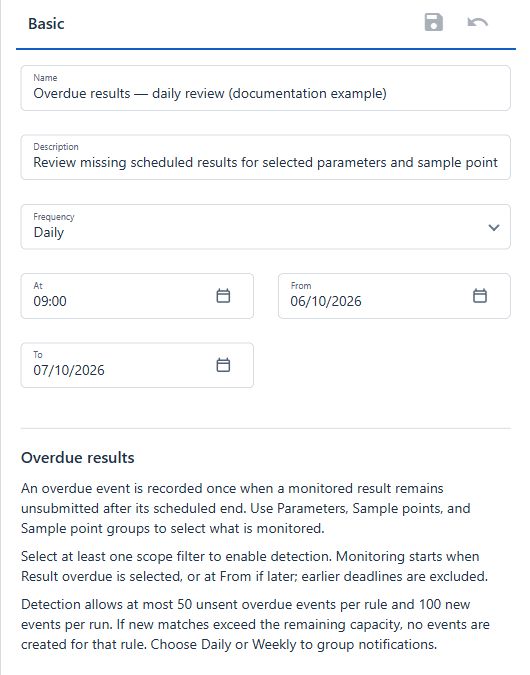
- Enter a clear Name, such as “Overdue results — daily review”, and a description of the intended scope.
- Choose Frequency. For a daily digest, select Daily and set the At time. Review From and To, then click Save.
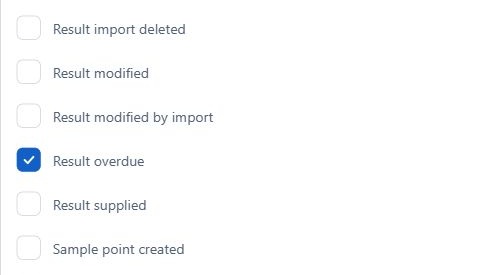
- Open Event types and select Result overdue. This selection is saved immediately.
- Add at least one parameter, sample point or sample point group using the criteria tabs described below.
- Associate the rule with a notification group containing the intended users, and make that group Active. See Define a notification group.
Choose a useful scope
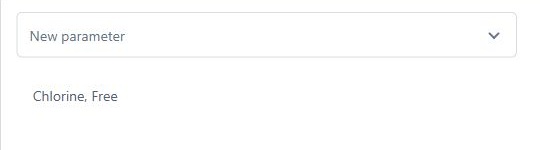
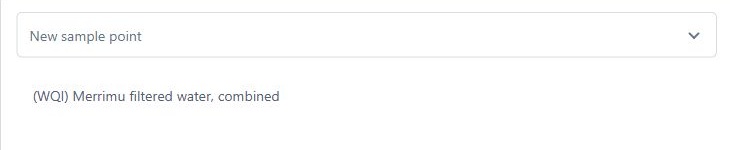
Open Parameters, find an item in New parameter, select it and click Add new. Repeat as needed. Use Sample points and Sample point groups in the same way to restrict locations. Added associations are saved immediately; review the resulting list rather than expecting the Attributes Save button to apply them.
| Selection | Results monitored |
|---|---|
| Parameters only | The selected parameters across sample points. |
| Sample points or groups only | Parameters at those locations. Groups include their descendant groups' sample points. |
| Parameters and locations | Only the selected parameters at the selected locations. |
| Multiple sample points and groups | Locations matching any selected point or group. |
| No scope selections | Overdue detection is not enabled by this rule. At least one parameter or location selection is required. |
Alert limit types are used for limit-breach events; they do not set overdue deadlines. The overdue deadline is the scheduled result's end time, not the notification's At time. Use the schedule to correct an inappropriate deadline.
Choose delivery timing
Aquantify checks for overdue results in a separate background job, once a minute by default. Notification delivery continues independently while that check runs. Once an overdue event is recorded, the normal notification engine processes it.
Administrators can change Overdue detection cron expression under Settings > Schedule independently of the notification delivery schedule.
The event enters the same notification process as other events. Instant sends matching activity on the next notification-processing run. Daily or Weekly groups activity for periodic review. The same event is not repeatedly sent by the same rule merely because the result remains unsubmitted.
For example, a result scheduled to end at 10:00 is still unsubmitted when checked at 10:01. Aquantify records Result overdue. An Instant rule can notify on a subsequent notification-processing run; a Daily rule includes the event at its next eligible delivery time.
Keep notifications manageable
Start with a small, actionable scope and recipients who can resolve the missing results. Prefer a daily digest for routine review. Overlapping rules can send the same event to different groups, so avoid unnecessary duplicate rules or recipient overlap.
Investigate a missing alert
- Check the scheduled result's end time and submission status. Confirm its deadline falls within the monitoring period.
- Check Result overdue is selected and the rule has a parameter or location scope matching the result.
- Review the rule's From/To period and whether detection has paused because the scope is too broad.
- Open Data > Events and filter Event type to Result overdue. Inspect the event date, parameter, sample point, testing organisation and scheduled end.
- If the event exists, check delivery frequency, the active notification group, its users and recipient account details.
See Events, Define a notification rule and Complete notification workflow.