
Find records with filters
Use filters to narrow a page to the tasks, parameters, sample points or other records you need. Available fields depend on the page. Results and sampling tasks are together in Data > Tasks; graphs are in Data > Result charts.
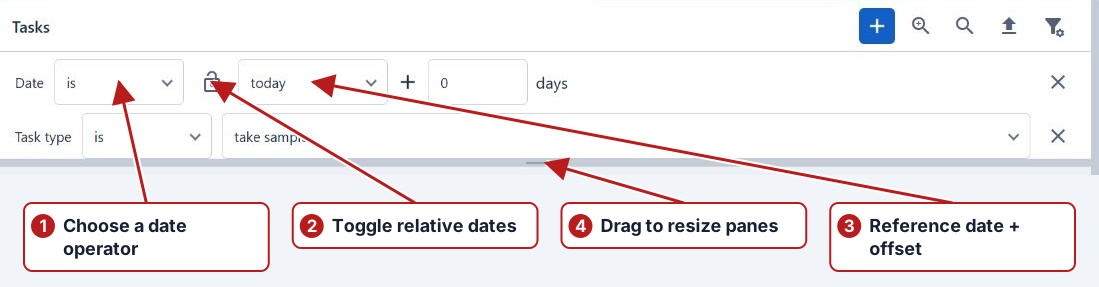
Set up a search
- Open the required page.
- Click Add filter and select a field.
- Choose its operator and enter or select a value.
- Add other fields to narrow the search, then click Search.
Work with the returned records
Use Rows per page, the Page selector and the page-navigation buttons where shown. A page with no rows may have no matching records, or may be waiting for you to click Search.
Open a record using the row actions provided by that page. In Tasks, double-click a row or choose Edit from its row menu.
Reuse a search
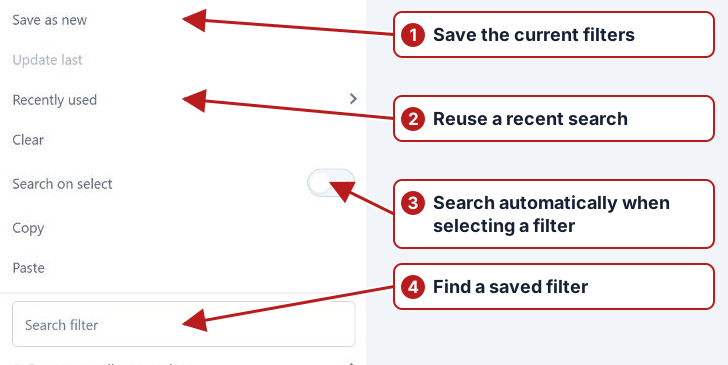
Manage filter saves named filter sets, recalls recent searches and clears editable filters. Saved filters use Roles to associate them with roles. See How to use Manage filter.
Dates and current site
A relative date moves with the date on which you search; an absolute date stays fixed. See Relative and absolute date filtering.
Select your site in the top bar, then use the applicable site or group filter on the page. Review the actual filters before searching. See Site selection.
Quick search and structured filters
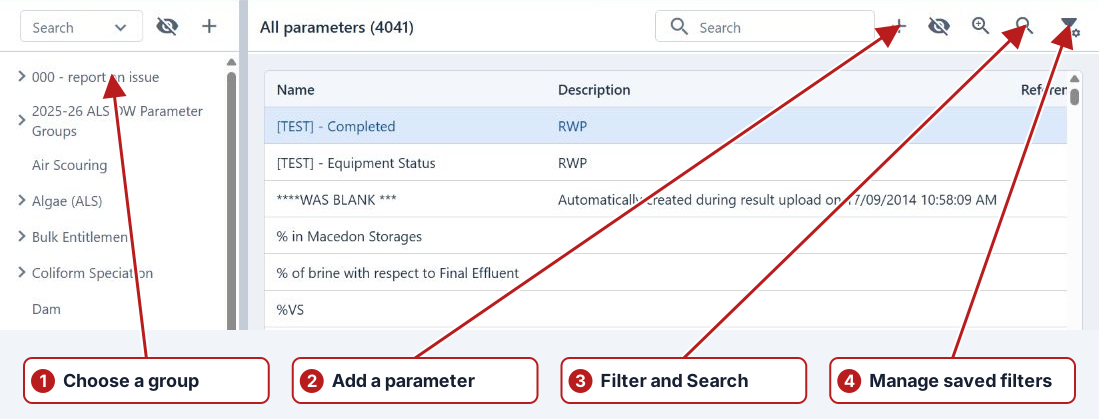
A quick-search box looks for the text supported by that browser. A structured filter specifies a field, operator and value. Use the latter for questions such as pending work for one program during a fixed period. Check which pane owns a search when a page contains both a hierarchy and a list.
Sort and inspect
Use sortable column headings to change ascending or descending order. Select a row to expose its available actions; a double-click opens the editor on pages that support it. Read the action title before choosing it. The task browser can offer different actions for sampling, result and calculation tasks.
Keep the search reproducible
Use a fixed date range for an investigation and save the relevant criteria in Manage. Use relative dates for routine work that should move with today. Review the filter chips after applying a saved set, then run Search.
When the expected record is missing
Check the selected group or site, partition access, inactive-state toggle, filter values and pagination. Clear unrelated filters and Search again. A blank browser is not evidence that the record has been deleted.